Blog
Guides for a clearer browser workspace
Practical articles about bookmarks, start pages, visual desktops, and repeatable browser routines.
Practical articles about bookmarks, start pages, visual desktops, and repeatable browser routines.
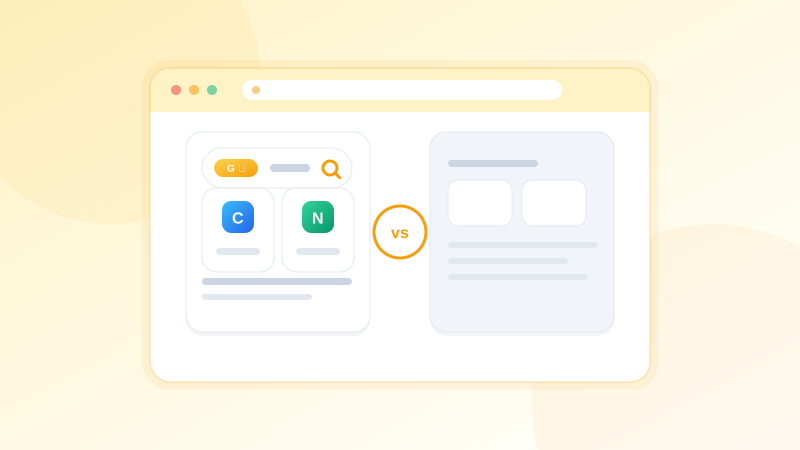
Comparing the top new tab page extensions for productivity — from visual desktops to minimal dashboards — and helping you pick the right one for your workflow.
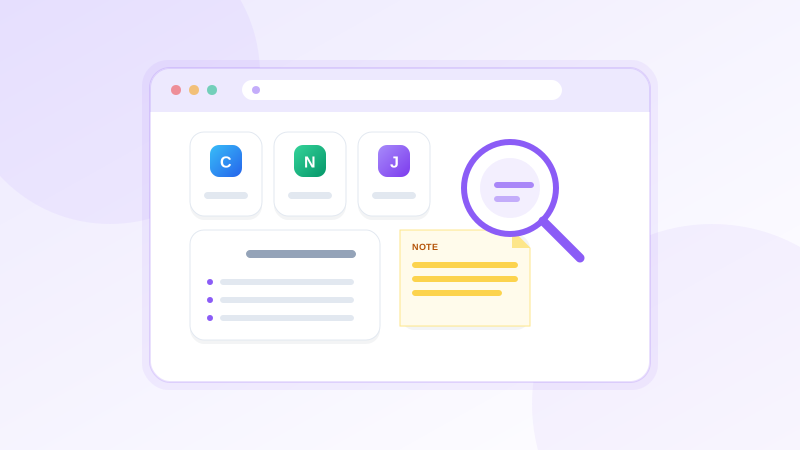
Learn how to move from a cluttered bookmark bar to a visual desktop — arranging your links spatially across multiple pages for work, study, and personal browsing.
Pocket was a popular read-it-later and bookmark tool. If you are looking for alternatives after its shutdown, here are the best tools for saving and organizing links visually.
If you are looking for alternatives to Toby bookmark manager, here are the best visual bookmark managers that give you spatial organization, multiple pages, and a better new tab experience.
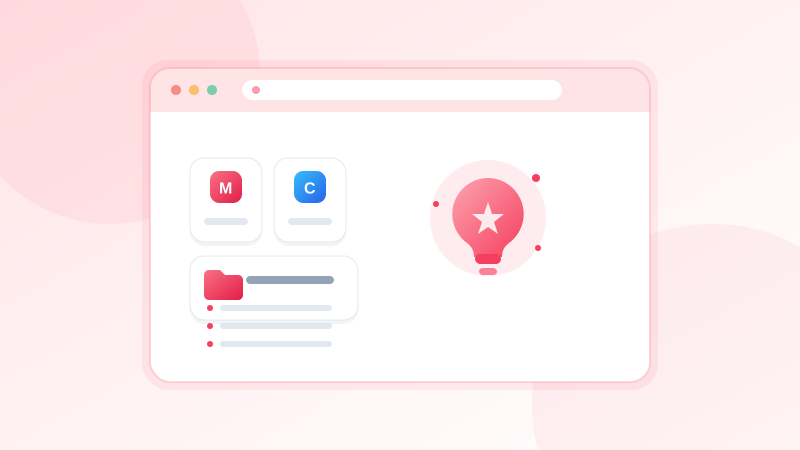
A new keyboard trick: copy any URL, press Ctrl+V on your canvas, and click to drop it — no extension, no menus.
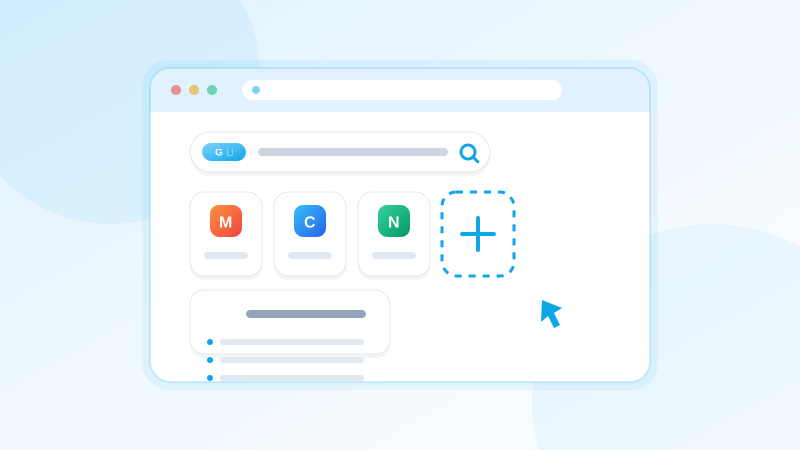
Explaining what visual bookmark managers are, how they differ from traditional browser bookmarks, and why spatial organization changes how you use the web.
NESKTOP grows with how you want to use it. Start with a few bookmark tiles. Add folders. Add search and notes. Create multiple pages. Share layouts. Use it on mobile. It scales from a clean start page to a multi-page command center.
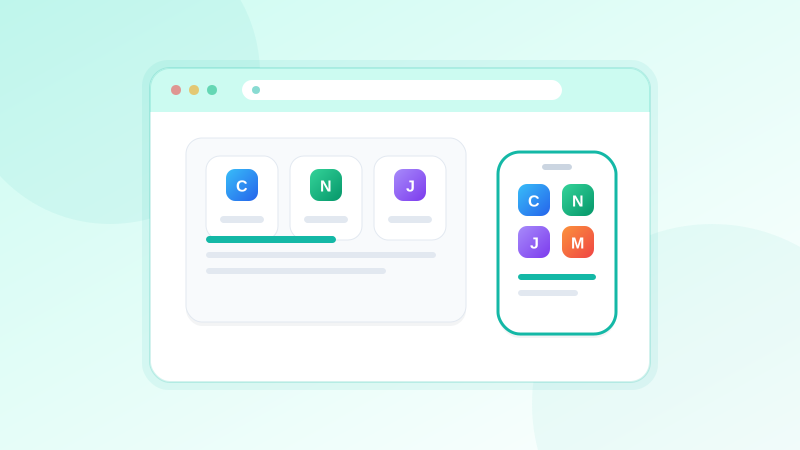
How to use the NESKTOP mobile canvas from Android today, plus the status of the planned native app and parental-control features.
You can arrange your mobile canvas from your computer, or design your desktop canvas from your phone. Both canvases are accessible from any device.
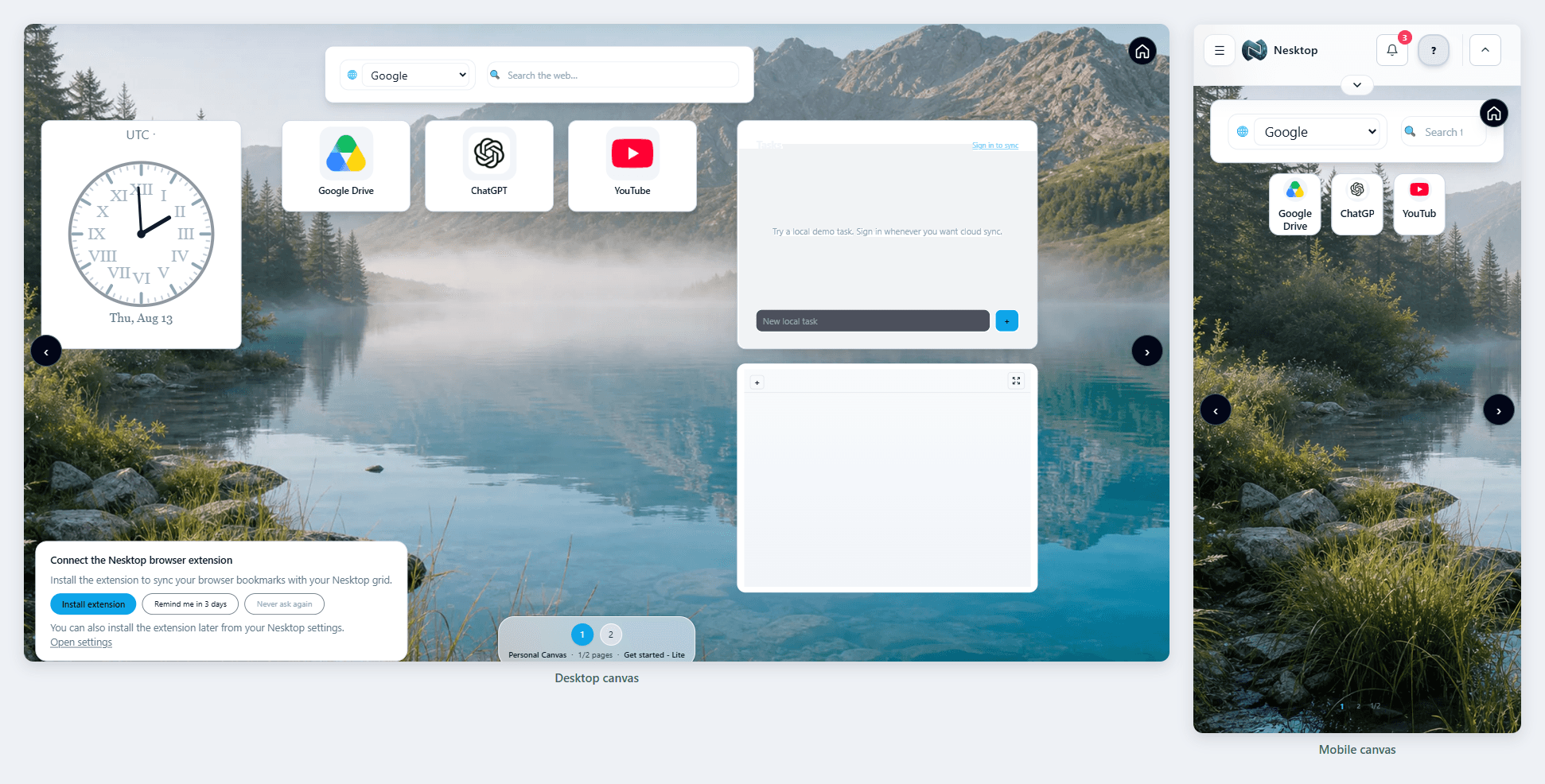
NESKTOP gives you two separate canvases — Desktop for your computer and Mobile for your phone. Each is independently arranged — the canvases are not mirrored — but both sync to your account and are available wherever you sign in.
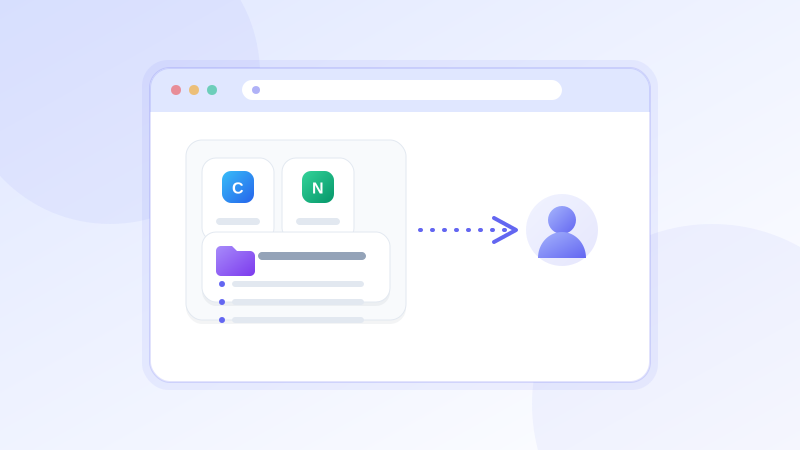
A shared NESKTOP layout is visual, interactive, and ready to use — compare that to sending 20 URLs in an email or message that the recipient has to set up themselves.
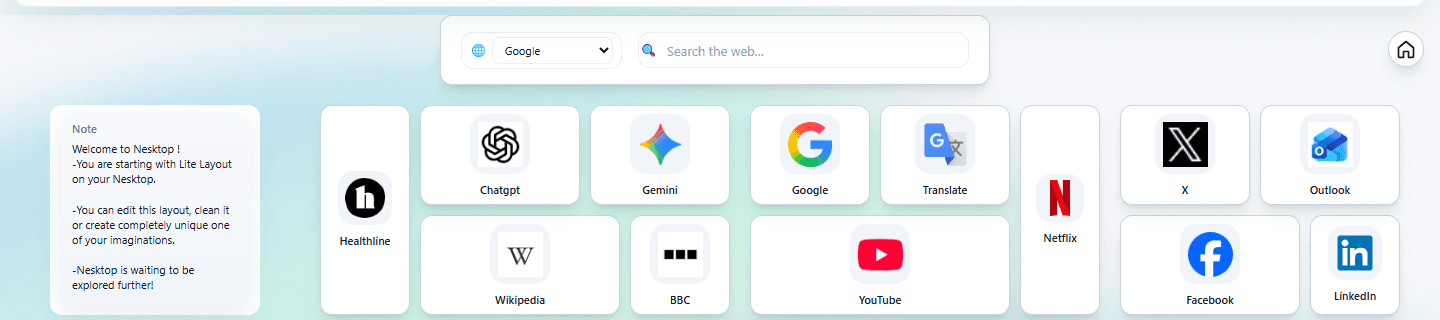
Create one team desktop layout with your company's tools, dashboards, and resources. Every new hire imports it and starts from the same organized setup on day one.
Design a simple, friendly NESKTOP layout for your parents with their favorite websites, email, news, and video calls — all large, visible, and one click away.
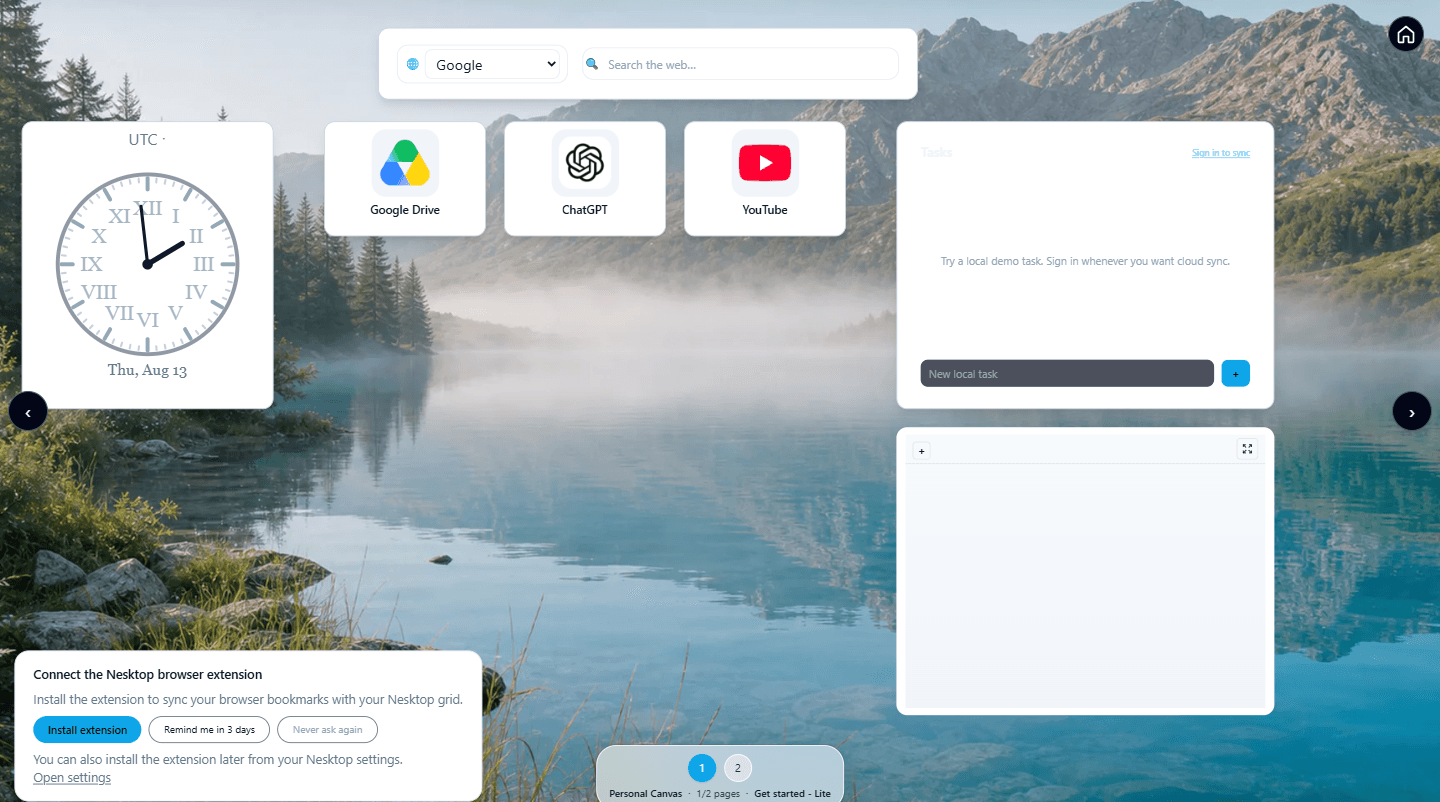
You can build a NESKTOP layout for a friend, family member, or colleague, generate a share link, and they can import it into their own account instantly.
NESKTOP works on Android today through its responsive web app and dedicated mobile canvas. A native Android app and parental-control features remain on the roadmap.
A practical overview of NESKTOP capabilities across personal workspaces, team layouts, public organization pages, and platform extensions.
A clear breakdown of NESKTOP Pro features — more pages, more widgets, more saved layouts, expanded backgrounds, annual billing, and lifetime options.
A running update on new NESKTOP features, improvements, and fixes — updated regularly so you always know what has changed.
Raindrop.io is excellent at bookmark collection, tagging, and archiving. NESKTOP is excellent at visual daily workflow. Many people benefit from using both.
Notion is for documents and databases. NESKTOP is for launching your daily web tools. They complement each other — here is how to use both in your workflow.
Browser bookmarks are excellent storage. NESKTOP is an excellent working surface. Here is how to use both together for a faster, more organized browsing experience.
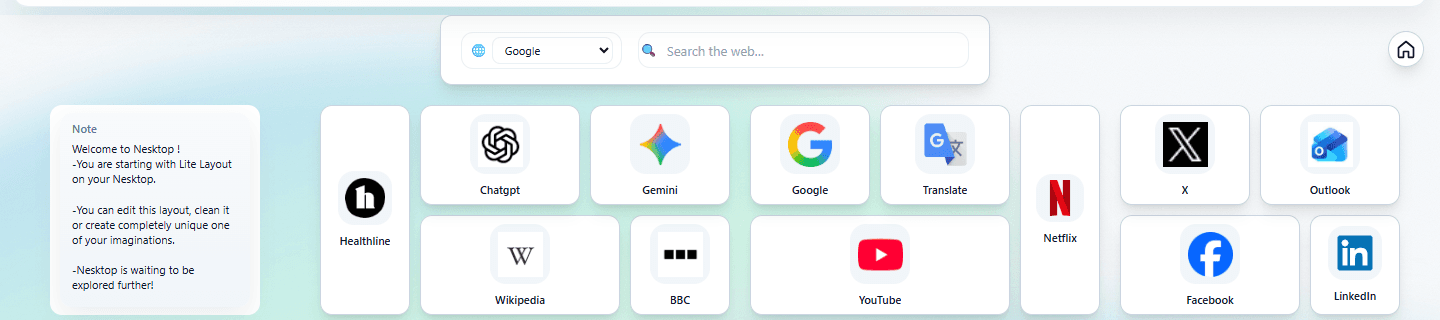
How small teams can use NESKTOP organizations and team layouts to give every member the same organized starting point.
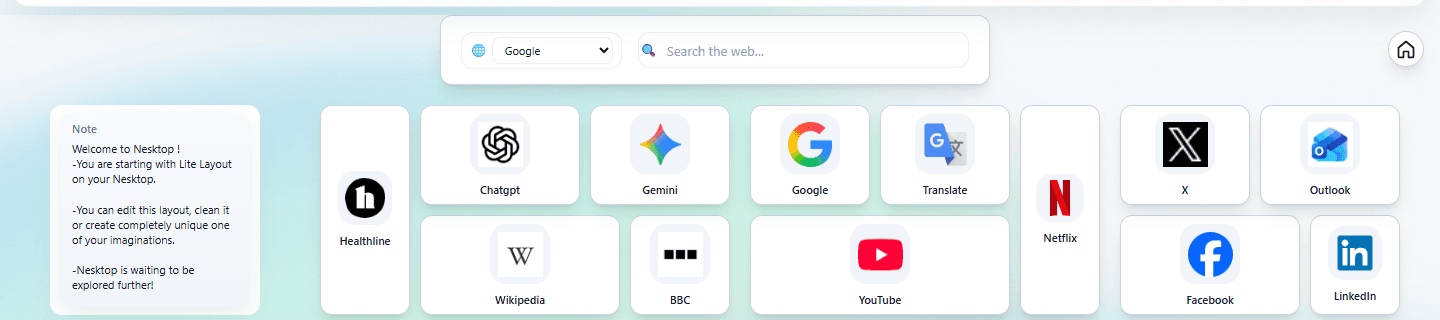
How developers can use NESKTOP to organize repositories, documentation, cloud dashboards, CI tools, and project resources into a clean technical workspace.
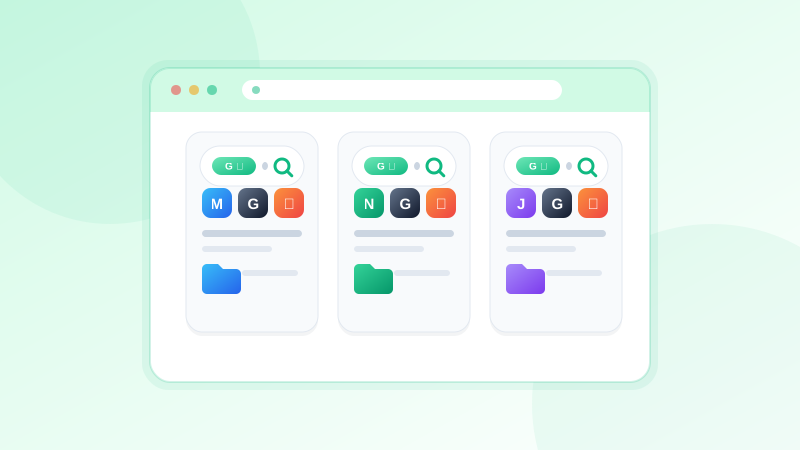
How remote workers can use NESKTOP to organize meeting links, project dashboards, team docs, communication tools, and daily routines on one visual canvas.
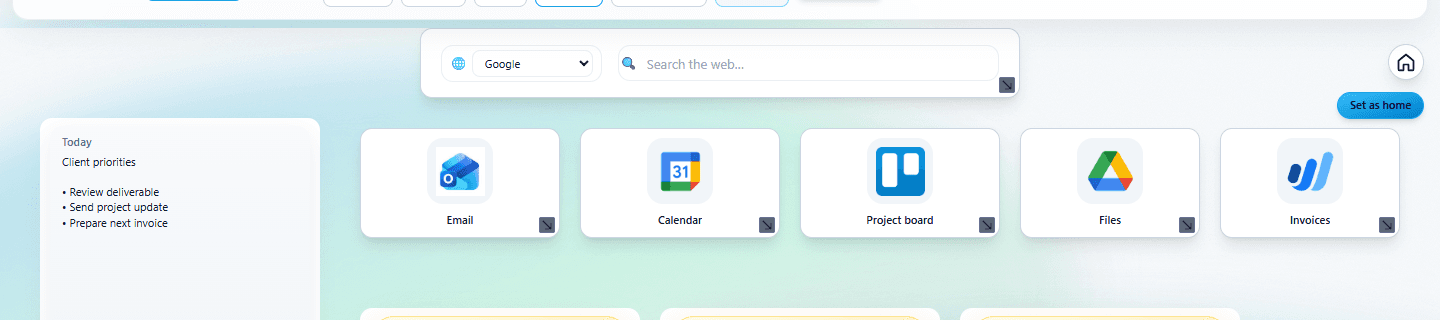
How freelancers and independent professionals can use NESKTOP to separate client projects, organize tools, save reusable layouts, and share workspaces.
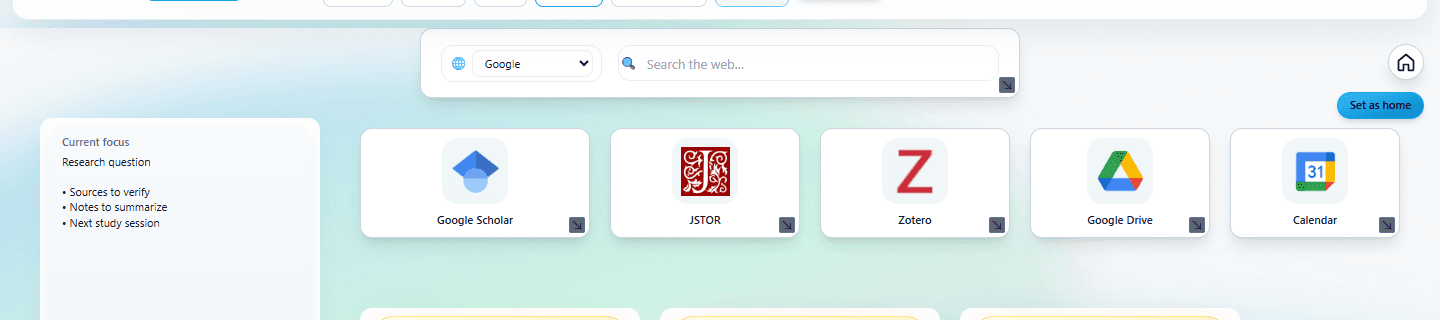
How to use the Study & Research preset, subject folders, note widgets, and search to create an academic workspace that keeps every course organized.
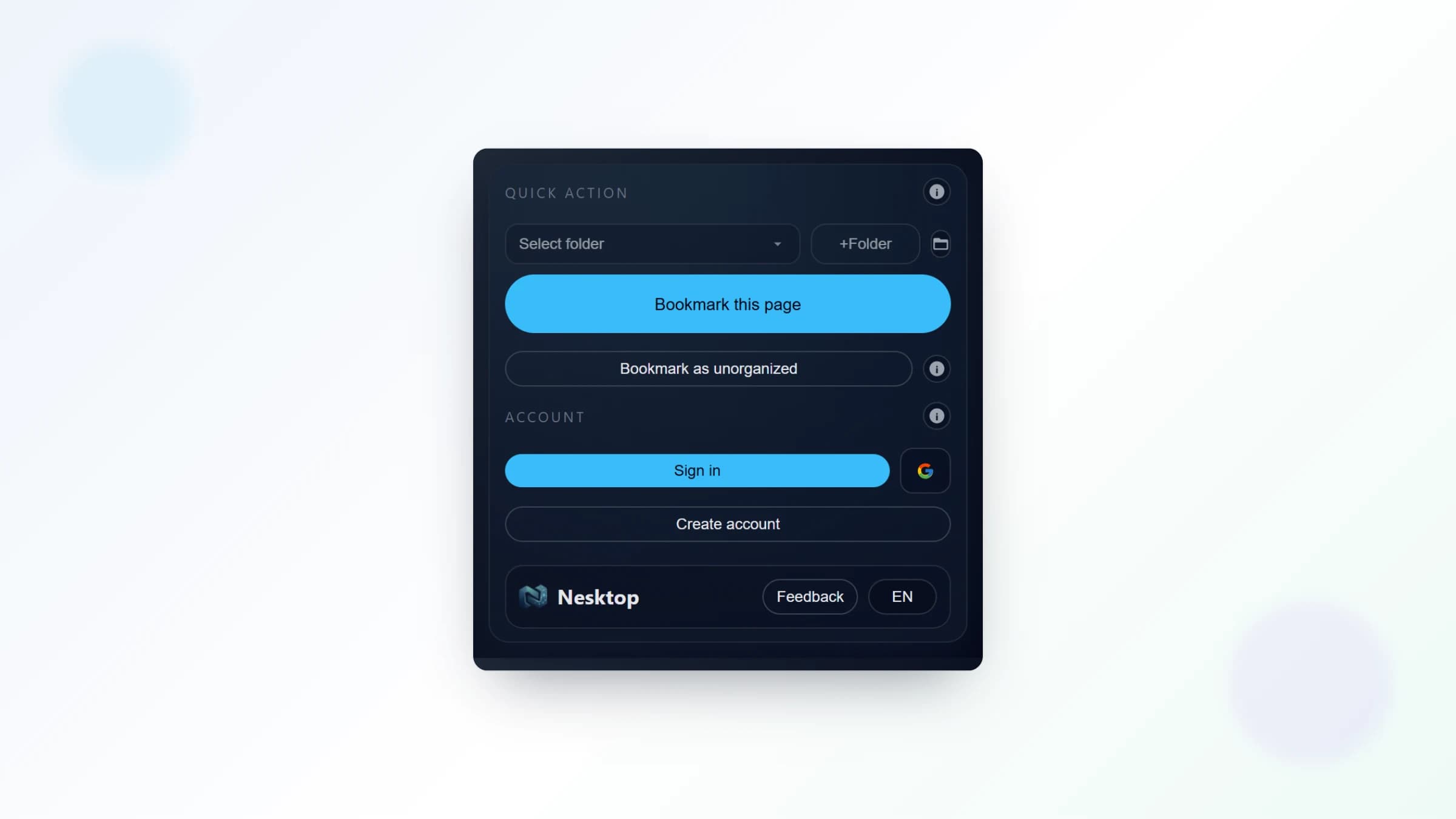
Everything the NESKTOP extension can do — save pages to a folder with one click, pull your browser bookmarks and top sites when you choose, and set NESKTOP as your new tab page or browser start page.
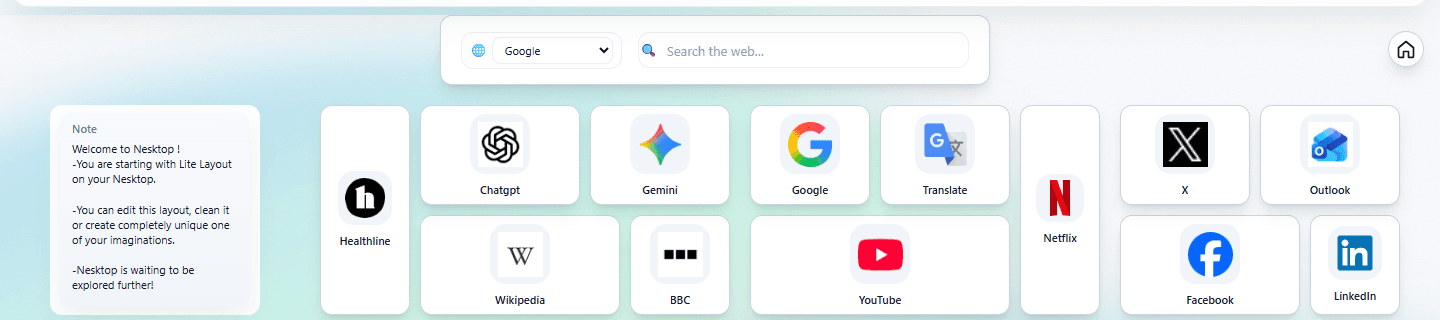
Many widgets on your NESKTOP canvas support individual color and style controls. Plus global dark mode, text size controls, alignment grids, and backgrounds on pages allowed by your account's plan background-page limit.
NESKTOP lets you save your desktop arrangement, load it back anytime, apply ready-made presets, and share your layout with anyone through an expiring link. Layout sharing is rolling out as a beta feature, so some options may be limited until general availability.
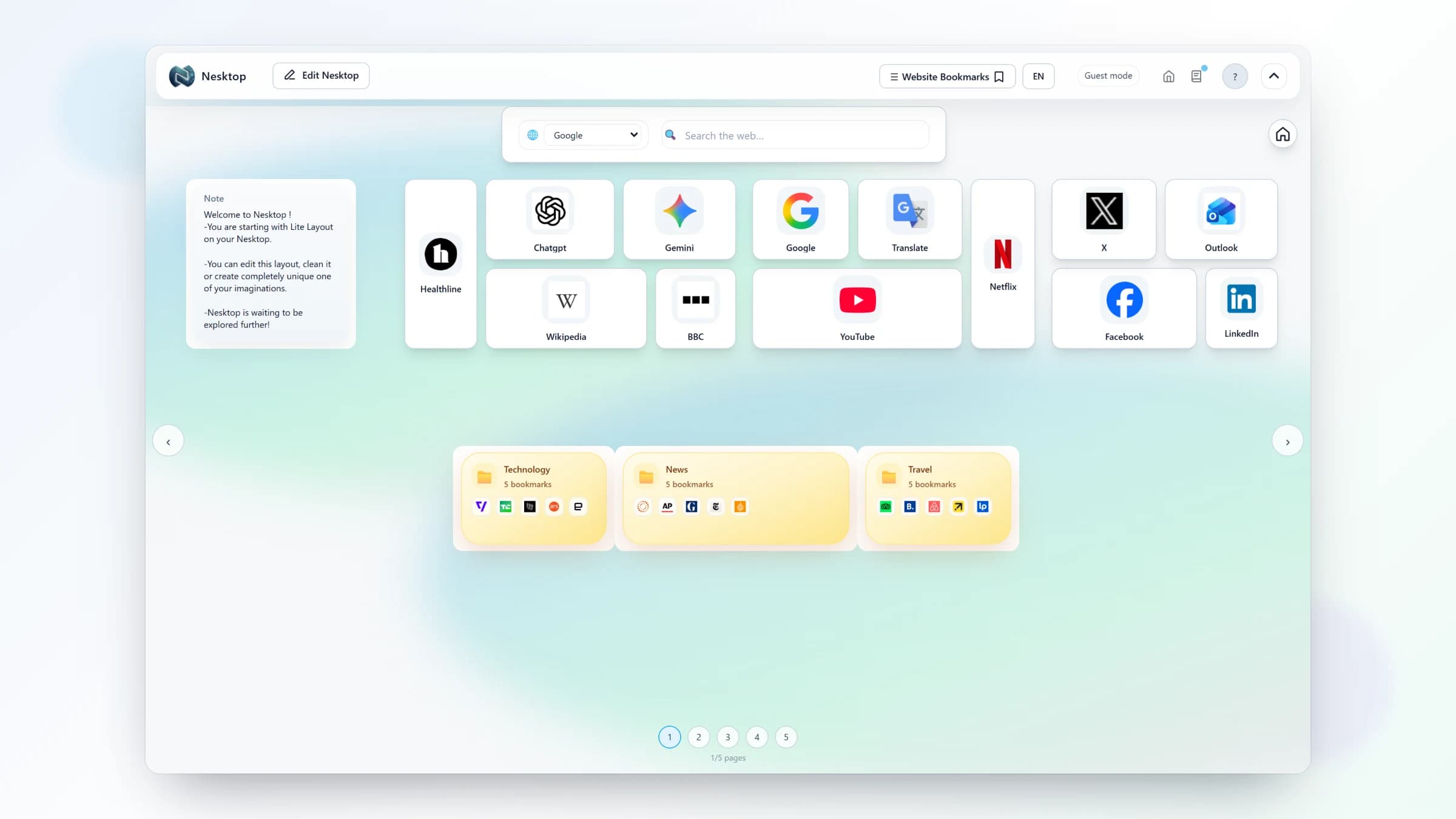
NESKTOP supports multiple independent pages per canvas — each with its own widgets and layout, plus its own background when your account's plan background-page limit allows. Here is how to use them to keep your contexts cleanly separated.
Discover useful websites and tools hand-picked by the NESKTOP editors — organized into themed categories and ready to add to your desktop.
NESKTOP can show your most-visited sites automatically on your desktop — no manual updating. Here is how the Popular Websites widget works.
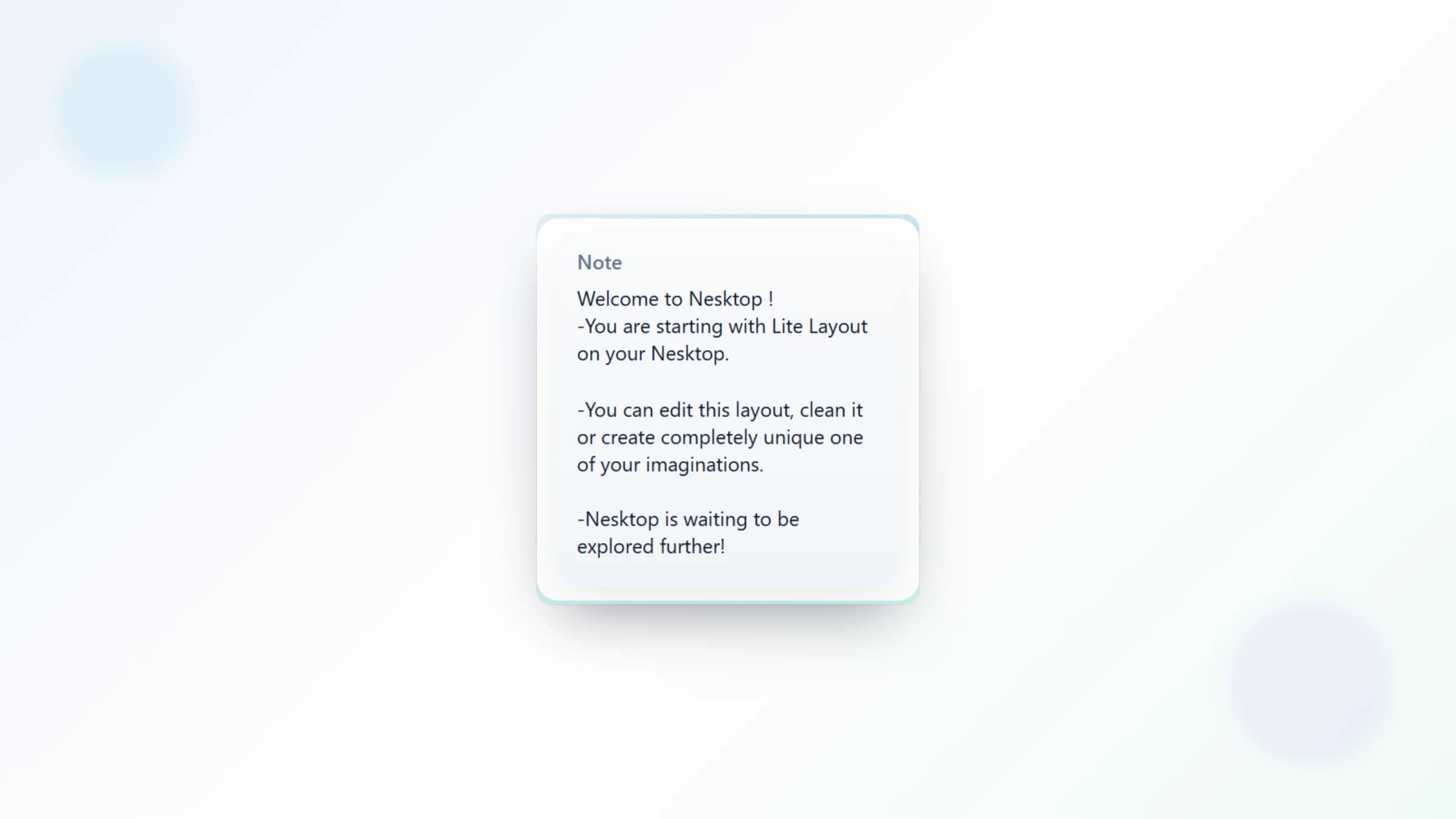
NESKTOP note widgets let you jot down quick thoughts, reminders, and references directly on your desktop — right next to the links and tools you use every day.
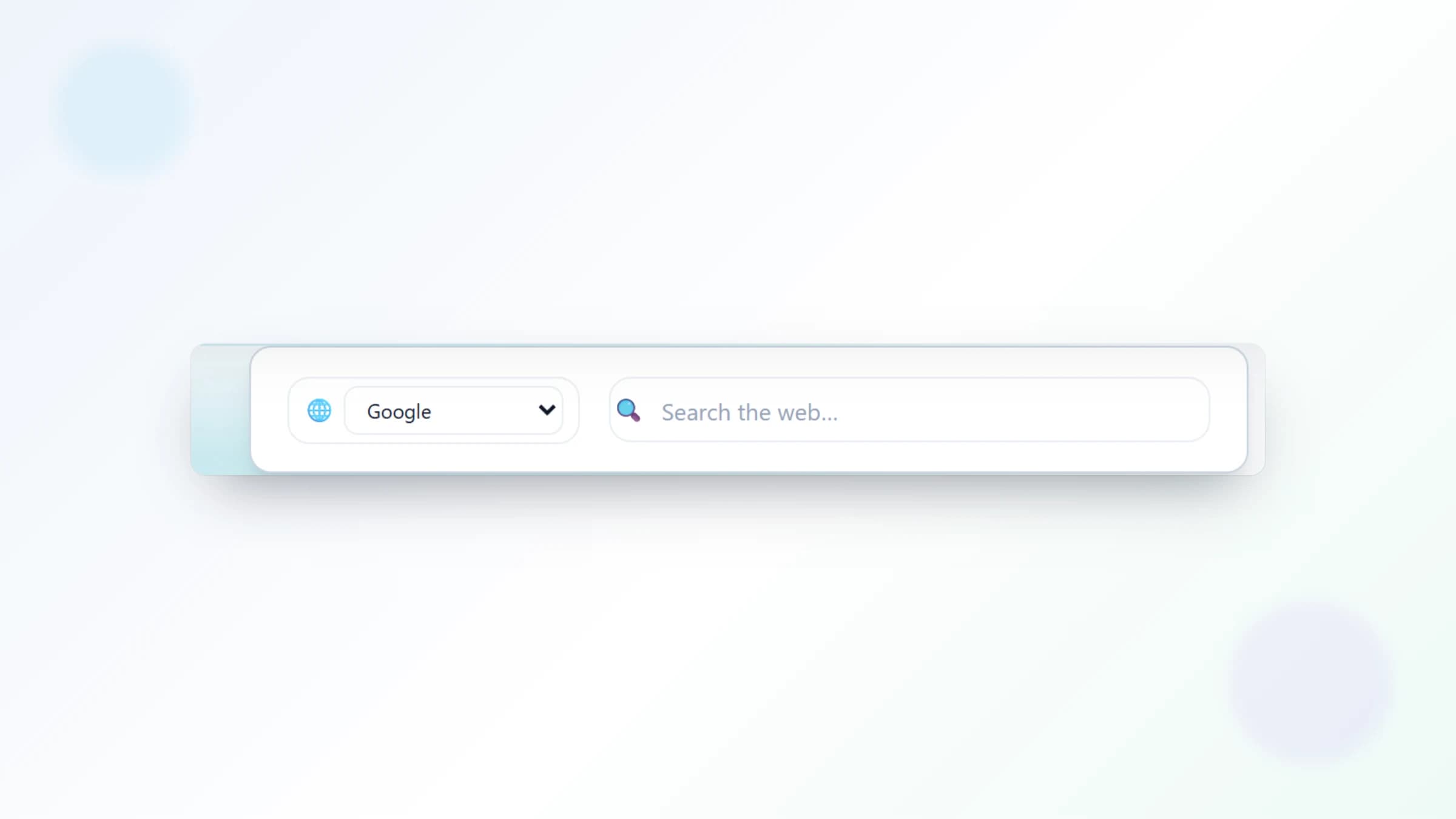
Search Google, Bing, Yahoo, DuckDuckGo, Brave, Startpage, or Ecosia directly from your NESKTOP desktop — results open in a new browser tab.
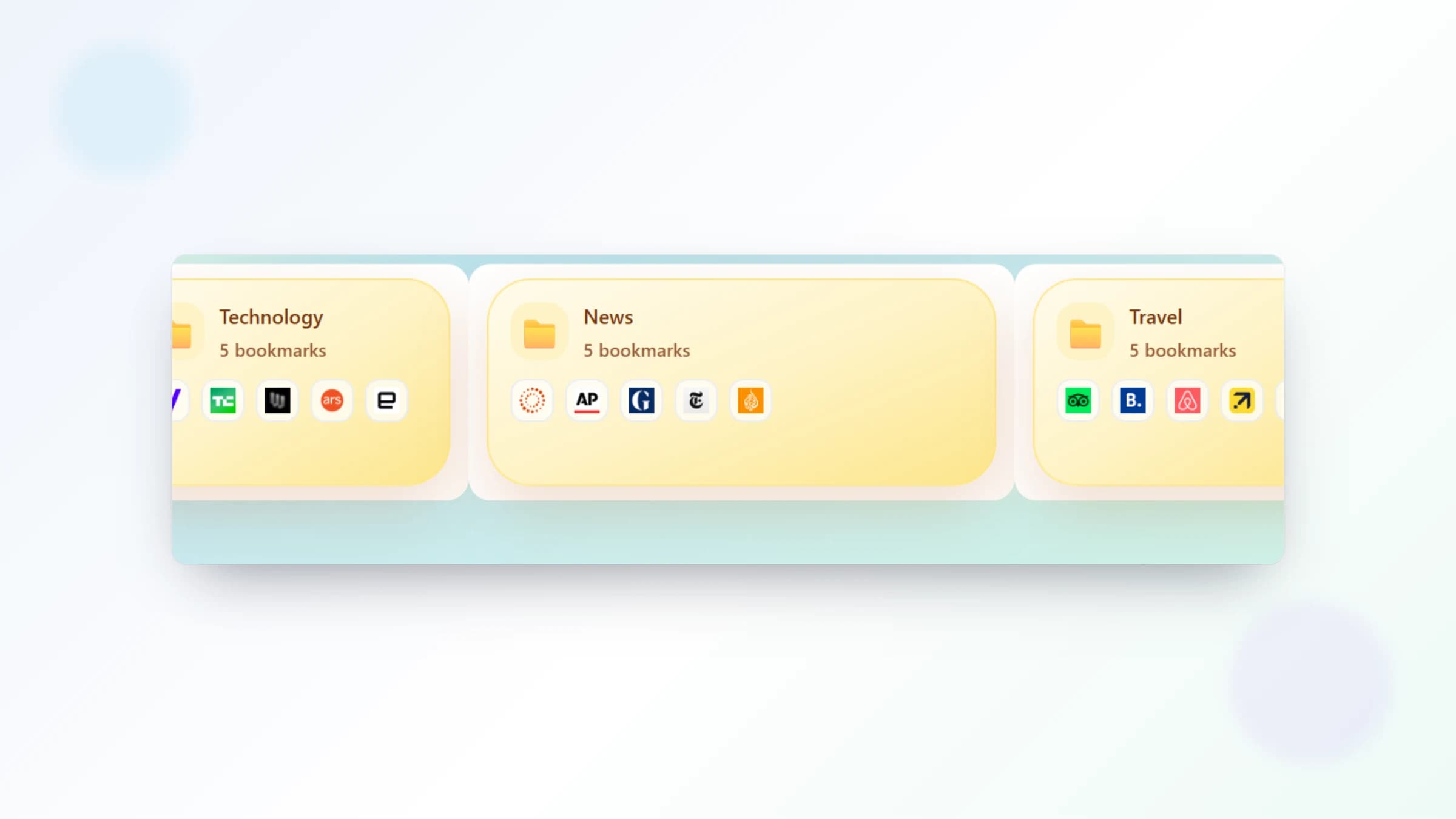
Bookmarks are at their best when you can see them, drag them, group them, and reach them with one click. Here is how NESKTOP turns your saved links into a visual workspace.
A practical guide to using NESKTOP alongside Notion, Raindrop.io, and browser bookmarks — each tool has its strengths, and they work well together.
How small teams can set up a shared NESKTOP workspace to organize their daily tools, dashboards, and resources in one place.
Understanding the difference between saving links, launching your daily work, and building a reusable visual workspace.
Real examples of how an online desktop becomes a start page, study dashboard, project workspace, and team hub.
A practical system to keep your bookmarks organized: separate your archive from your daily tools, and give each context its own visual page.
How to use NESKTOP as a daily launch surface while keeping your browser bookmarks as a deeper archive.
Step-by-step instructions to install the NESKTOP Chrome extension, set your visual desktop as a new tab page, and use the web app in other browsers.
A complete guide to every built-in NESKTOP preset — what each one includes, who it fits best, and how to customize it for your own routine.
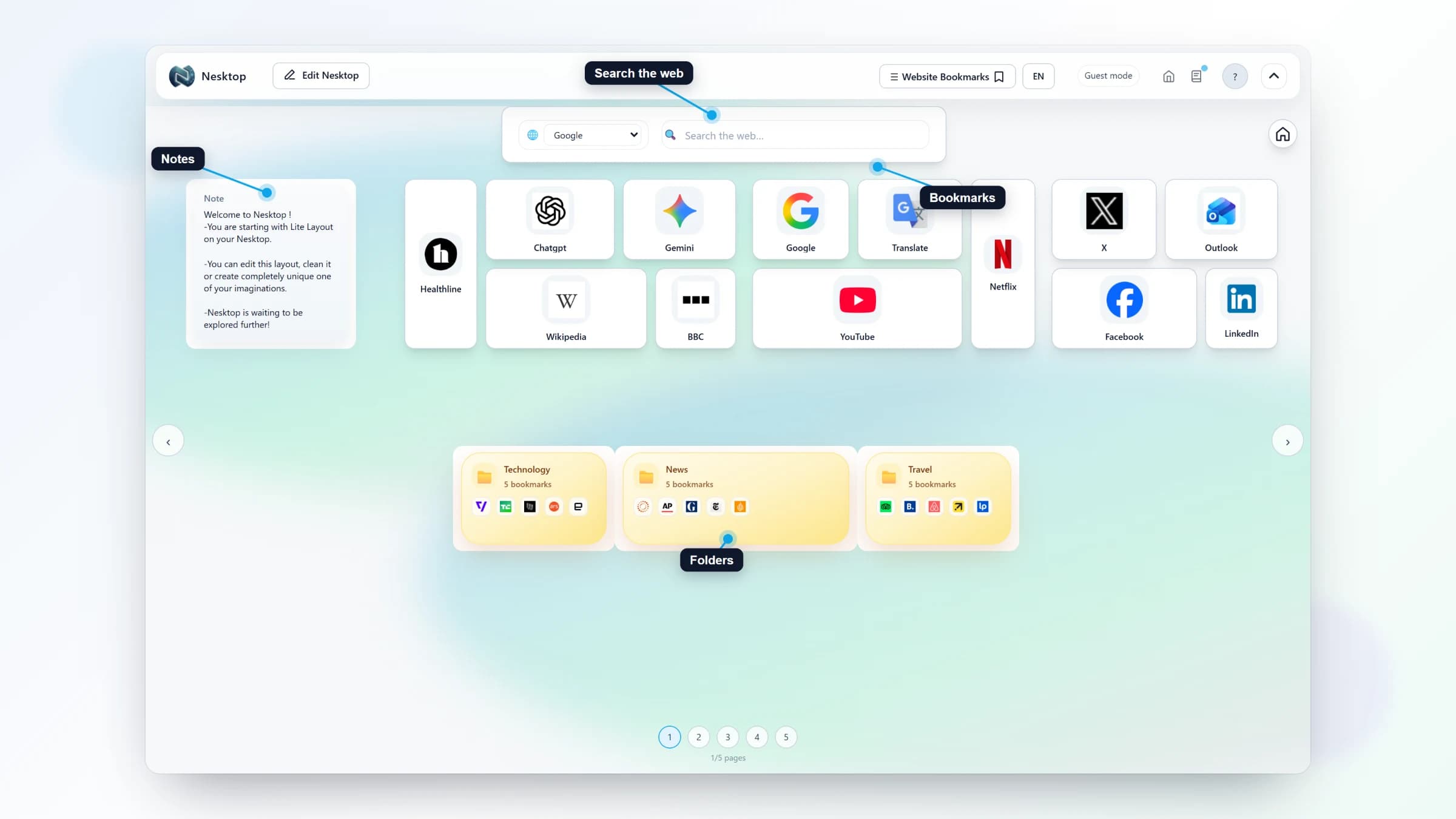
A step-by-step walkthrough: sign up, apply a preset, replace the sample links with your own, and start using your visual desktop.