
Multiple pages, one desktop: separating work, study, and personal life in NESKTOP
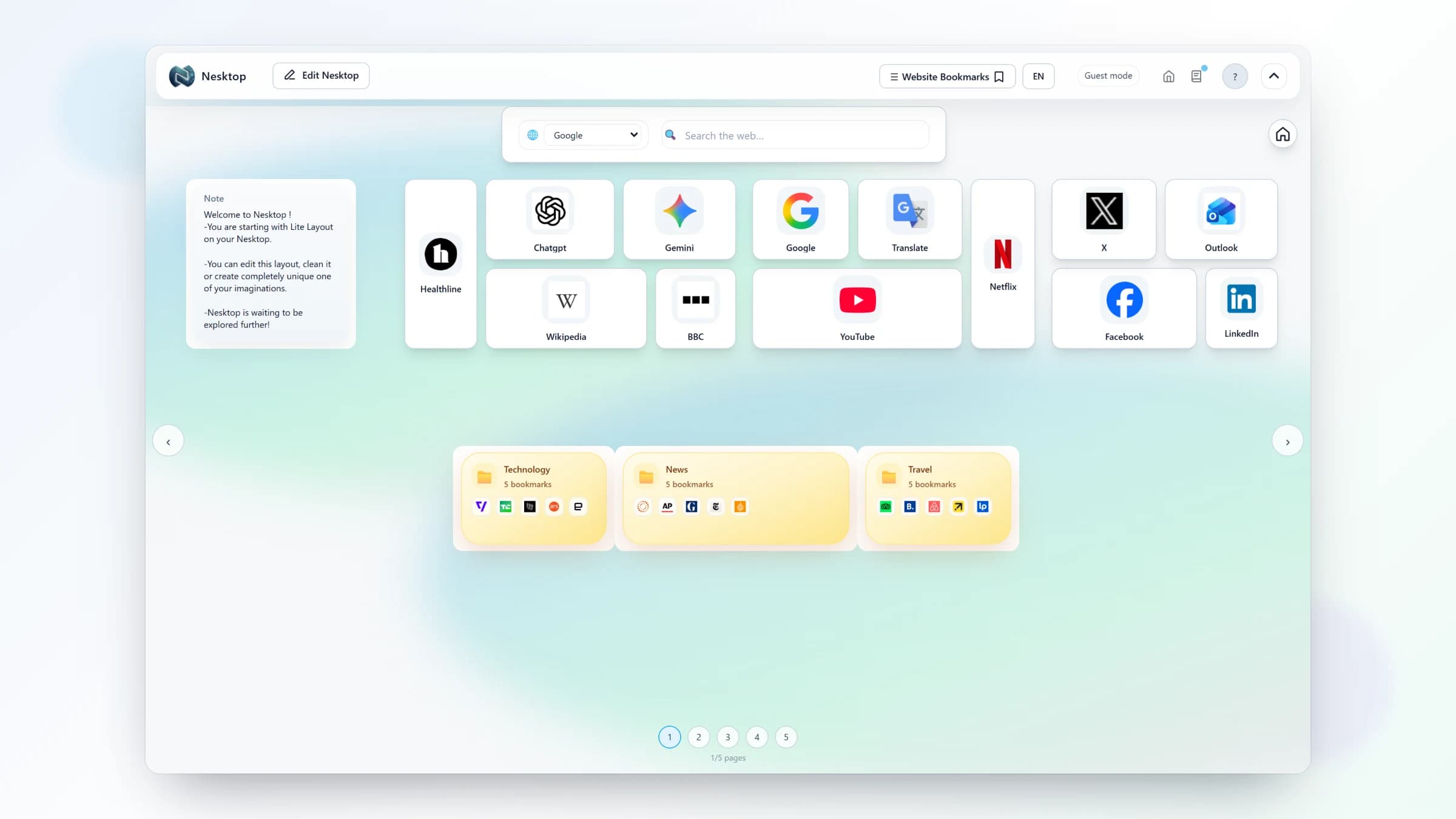
NESKTOP supports multiple independent pages per canvas — each with its own widgets and layout, plus its own background when your account's plan background-page limit allows. Here is how to use them to keep your contexts cleanly separated.
Why multiple pages matter
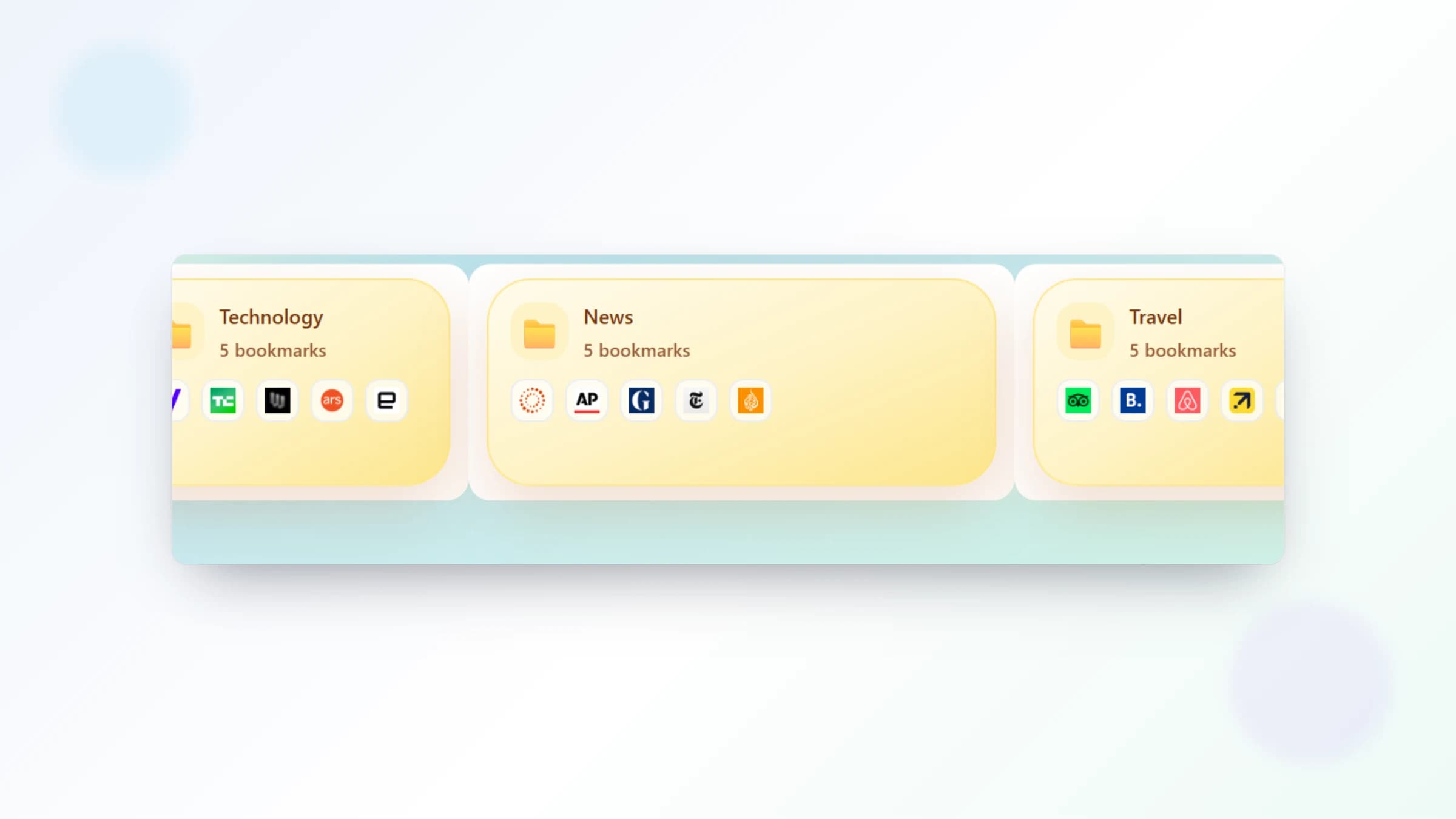
Mixing work tools, personal links, study resources, and project dashboards on a single page creates visual clutter and mental friction. NESKTOP pages solve this: each page is an independent canvas with its own set of widgets, folders, and bookmarks, and you can give each page a background up to your account's plan background-page limit. You can build a focused work desktop, a separate study desktop, and a personal browsing desktop — and switch between them instantly.
Give every context its own space
Create separate pages for work, study, and personal life — all in one NESKTOP account.
Try it freeDesktop and Mobile canvases — two independent workspaces
Even better, NESKTOP gives you two complete canvases: Desktop (optimized for larger screens) and Mobile (optimized for phone and tablet). Each canvas has its own set of pages. Your desktop work layout does not need to fit on a phone — the mobile canvas gives you a touch-friendly version with its own arrangement. Both sync to your account and are accessible from any device.
How to organize your pages
Start by identifying your main contexts. A typical setup might include: a Work page with your CRM, email, project boards, and dashboards; a Study page with subject folders, research links, and notes; a Personal page with social media, news, banking, and entertainment. Add pages as your needs grow. The page limit depends on your plan — Pro and Lifetime plans support more pages.
Comparison table
| Feature | Nesktop | Other approach |
|---|---|---|
| Work tools | Dedicated work page — CRM, dashboards, meeting links | Mixed with personal links in one bookmark bar |
| Study resources | Dedicated study page — subject folders, notes, research links | Scattered across tabs and folders |
| Personal browsing | Dedicated personal page — news, banking, entertainment | Jumbled with work bookmarks |
| Switching | One click in the page navigation bar | Close and reopen tabs, navigate menus |
FAQ
How many pages can I create?
Free has 2 pages per canvas. Pro and Lifetime have more pages for users who need extensive context separation.
Can I copy a page layout to another page?
You can save a page layout, then load that saved layout onto a different page. This is useful when you want to create variations of a working setup.
Related articles
Give every context its own space
Create separate pages for work, study, and personal life — all in one NESKTOP account.
Continue