
Organizing bookmarks visually: how folders, pages, and widgets work together in NESKTOP
Bookmarks are at their best when you can see them, drag them, group them, and reach them with one click. Here is how NESKTOP turns your saved links into a visual workspace.
Step 1: Place active bookmarks as tiles
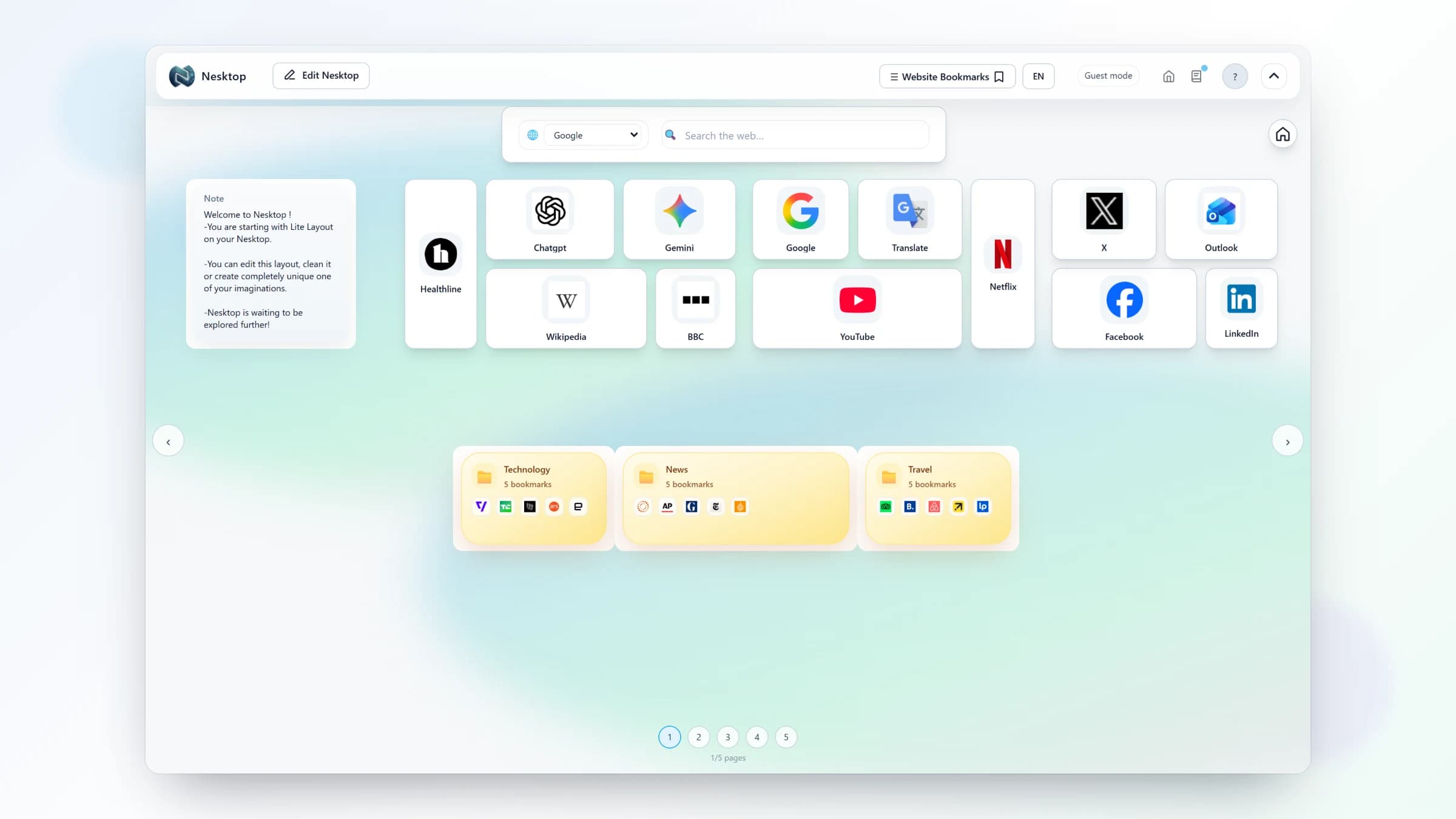
Add a bookmark tile for each link you want visible. Give it a clear name and URL, then move and resize it on the canvas so the links you open most often are easy to scan. Keep the daily set visible instead of reproducing the whole archive.
See your bookmarks in a whole new way
Create a free account, add your first bookmarks as tiles, and see how visual organization changes your workflow.
Try it freeStep 2: Create folders and drag links into them
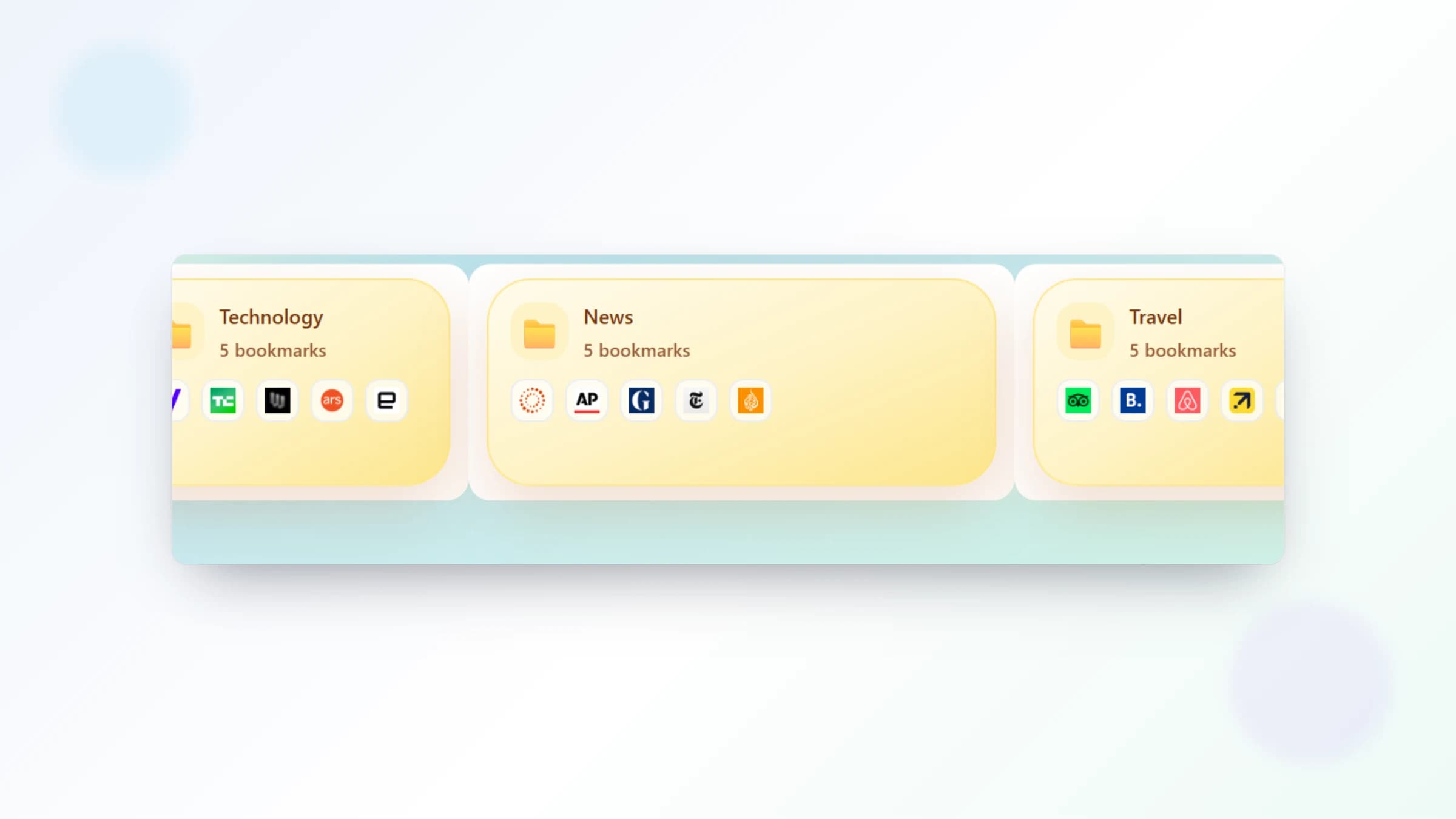
Create a folder for a related group, such as news, work tools, or research sources. Drag bookmarks into it, open the folder to check its contents, and rearrange, add, or remove links as the group changes. Visual grouping keeps related destinations together without relying on nested text menus.
Step 3: Create a page for each context
Add separate pages for work, study, personal browsing, or individual clients and projects. Each page keeps its own widgets, folders, and bookmarks. Use the page navigation bar to switch contexts with one click instead of rebuilding the same arrangement each time.
Step 4: Add the widgets that support the workflow
Add a search widget with your preferred engine — Google, Bing, DuckDuckGo, Brave, and more — for quick lookups. Add a note widget beside the links it supports, and use the Popular Websites widget when you want your most-visited sites surfaced from browser data. Start with only the widgets that help this page do its job.
Comparison table
| Feature | Nesktop | Other approach |
|---|---|---|
| Visibility | Selected bookmarks can be placed as visible tiles on a canvas | Browser bookmarks: hidden in dropdown menus or sidebars |
| Grouping | Visual folders — drag, drop, and see contents at a glance | Nested text folders — click to expand |
| Context switching | Multiple pages — one click to change your entire workspace | One flat bookmark structure for everything |
| Extra tools | Search, notes, Popular Websites widget alongside bookmarks | Bookmarks only |
FAQ
Can I import my existing browser bookmarks into NESKTOP?
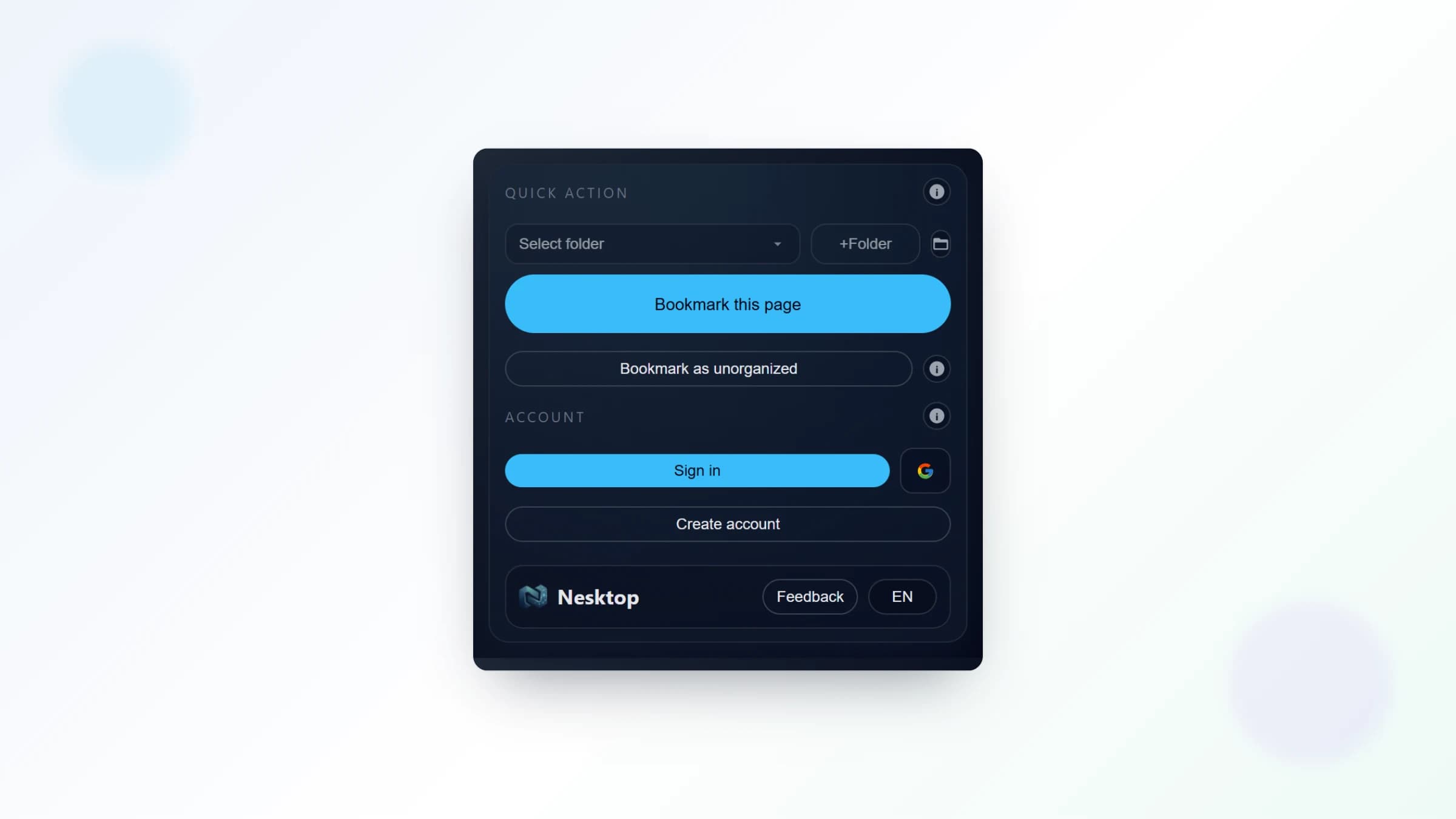
The NESKTOP browser extension collects your browser bookmarks into the browser-data panel (Browser URL folders). Pull the data manually with the explicit Pull action whenever you want an update, then choose which links to place on your NESKTOP canvas — bookmarks are never imported into the canvas automatically.
How many bookmarks can I put on a NESKTOP page?
The number depends on your plan. Free accounts have generous widget limits suitable for everyday use. Pro and Lifetime plans support more widgets, more pages, and more saved layouts.
Related articles
See your bookmarks in a whole new way
Create a free account, add your first bookmarks as tiles, and see how visual organization changes your workflow.
Continue