
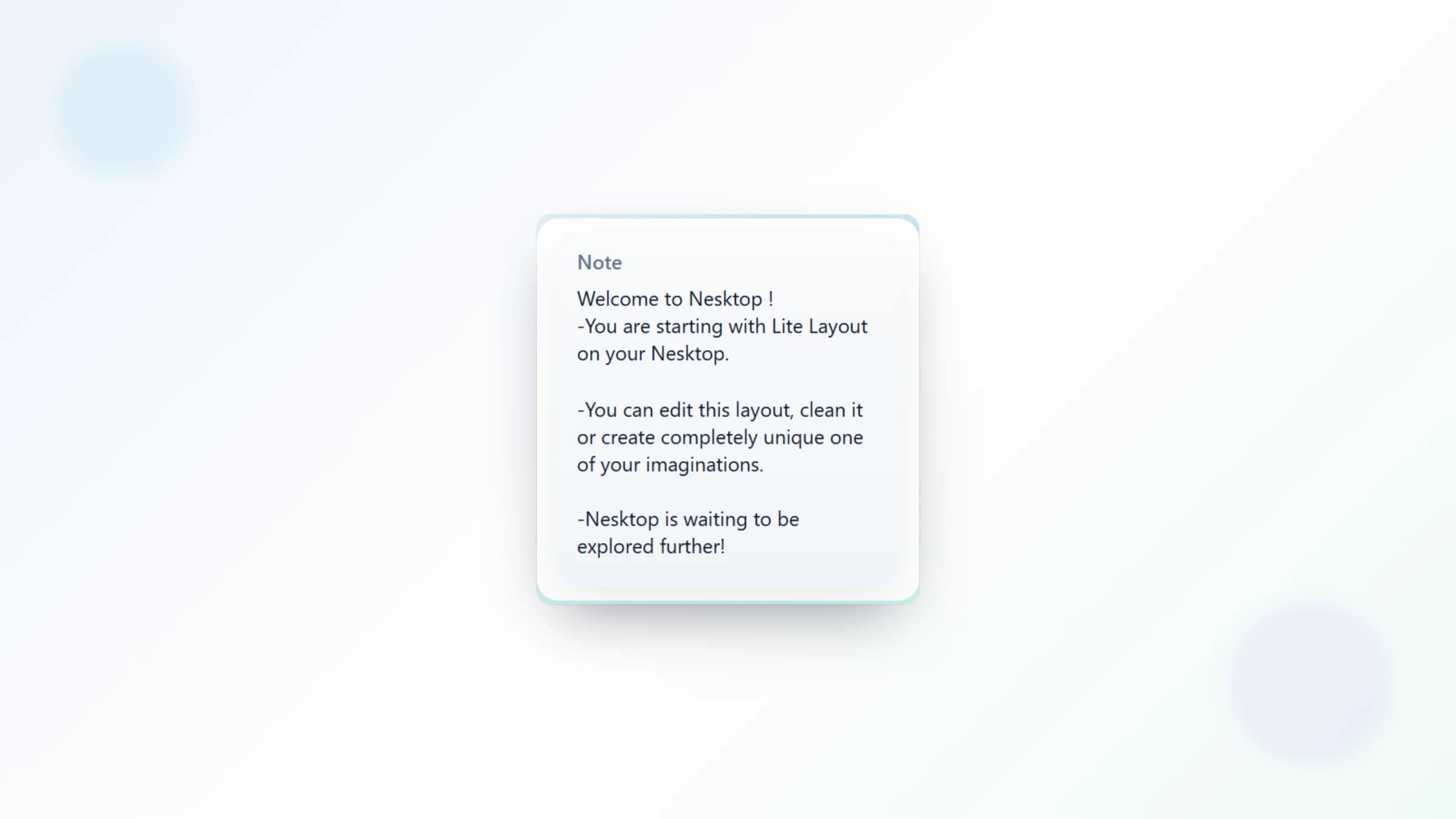
Notes on your desktop: keep working context right beside your tools
NESKTOP note widgets let you jot down quick thoughts, reminders, and references directly on your desktop — right next to the links and tools you use every day.
Notes where you need them — on the desktop, not in another tab
Most notes live in a separate app or document — out of sight until you deliberately open them. NESKTOP note widgets sit directly on your canvas, beside your bookmarks, search bars, and folders. Write down a to-do beside your project tools. Keep a reference note next to your research links. Pin a daily reminder next to your calendar. The note is always visible.
Put your notes where you can see them
Add note widgets to your desktop and keep your thoughts beside the tools you use every day.
Try it freeTwo note types for different needs
NESKTOP offers two kinds of note widgets. Standard notes give you a full text area with color and gradient controls — perfect for longer reference text, project briefs, or checklists. Plain notes are simpler and lighter — ideal for short reminders, quick thoughts, or labels. Use whichever fits the context.
Style your notes to match your desktop
Standard notes support color, gradient strength, darkness, text darkness, and gradient mirroring. Plain notes have their own color, darkness, text darkness, gradient, and gradient-mirroring controls. A bright amber note can stand out as a priority reminder, while a subtle violet note can blend into a research page.
Comparison table
| Feature | Nesktop | Other approach |
|---|---|---|
| Visibility | Always on your desktop, no switching apps | Separate note apps: hidden behind tabs |
| Context | Notes sit beside the tools and links they relate to | Standalone notes without surrounding context |
| Customization | Standard notes: color, gradient strength, darkness, text darkness, and mirror controls. Plain notes: color, gradient, darkness, text, and mirror controls. | Limited or uniform styling |
FAQ
Can I have multiple notes on one page?
Yes. You can add as many note widgets as your plan allows, each with its own content and visual style. Use different colors to organize different types of notes.
Are notes saved automatically?
Yes. Every change you make to a note is saved automatically. Your notes persist across sessions and are available whenever you return to your desktop.
Related articles

Put your notes where you can see them
Add note widgets to your desktop and keep your thoughts beside the tools you use every day.
Continue