How to set up your first NESKTOP desktop in 5 minutes
A step-by-step walkthrough: sign up, apply a preset, replace the sample links with your own, and start using your visual desktop.
Step 1: Create your free account
Go to nesktop.com and click Start Free. You can sign up with your email or use Google sign-in. A free account gives you a full canvas with pages, bookmarks, folders, search widgets, notes, and more — plenty to get started and see if NESKTOP fits your daily routine.
Build your first desktop
Sign up free, pick a preset, and replace the sample links with your own. Five minutes is all it takes.
Try it freeStep 2: Choose a preset that matches your routine
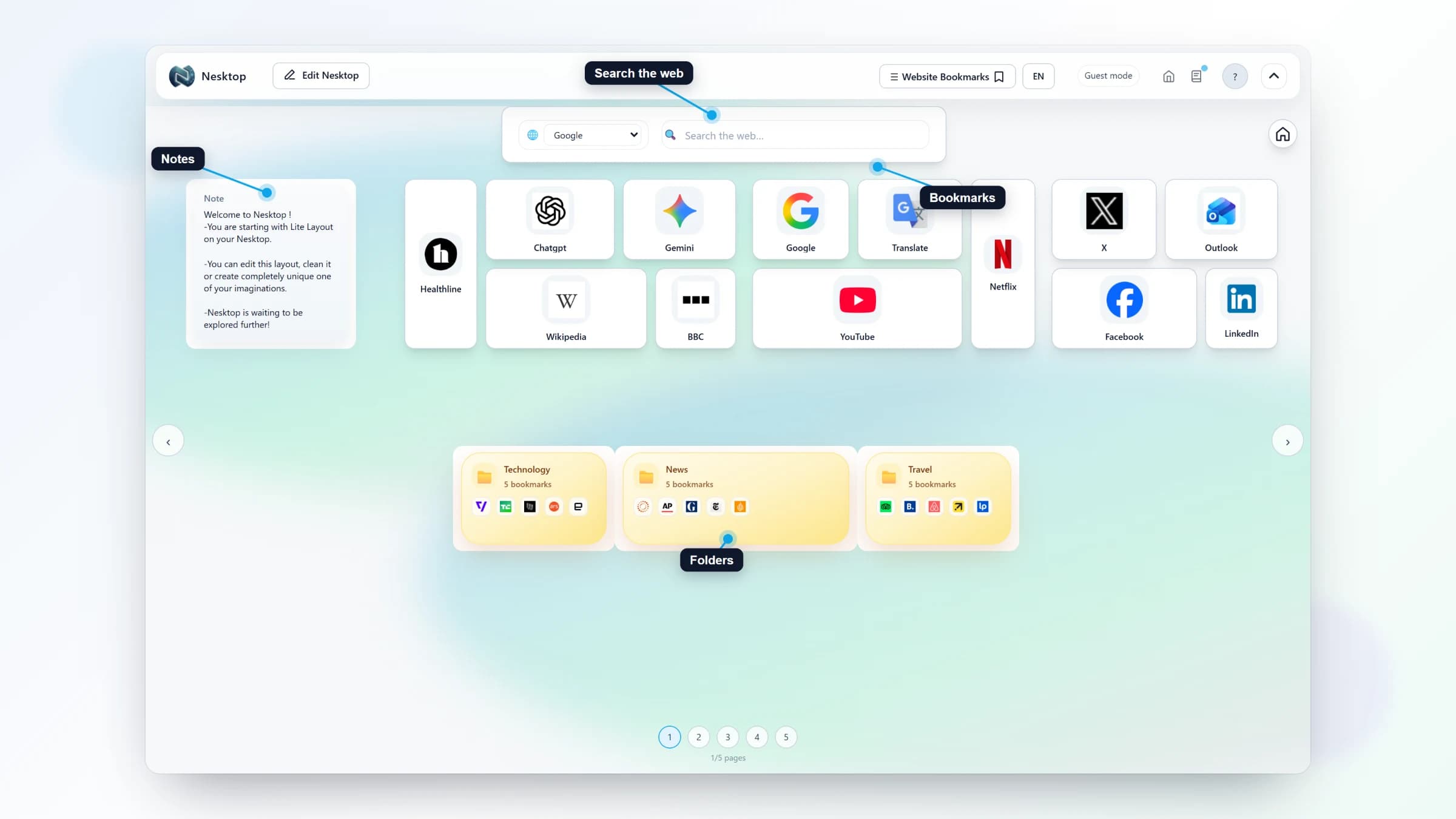
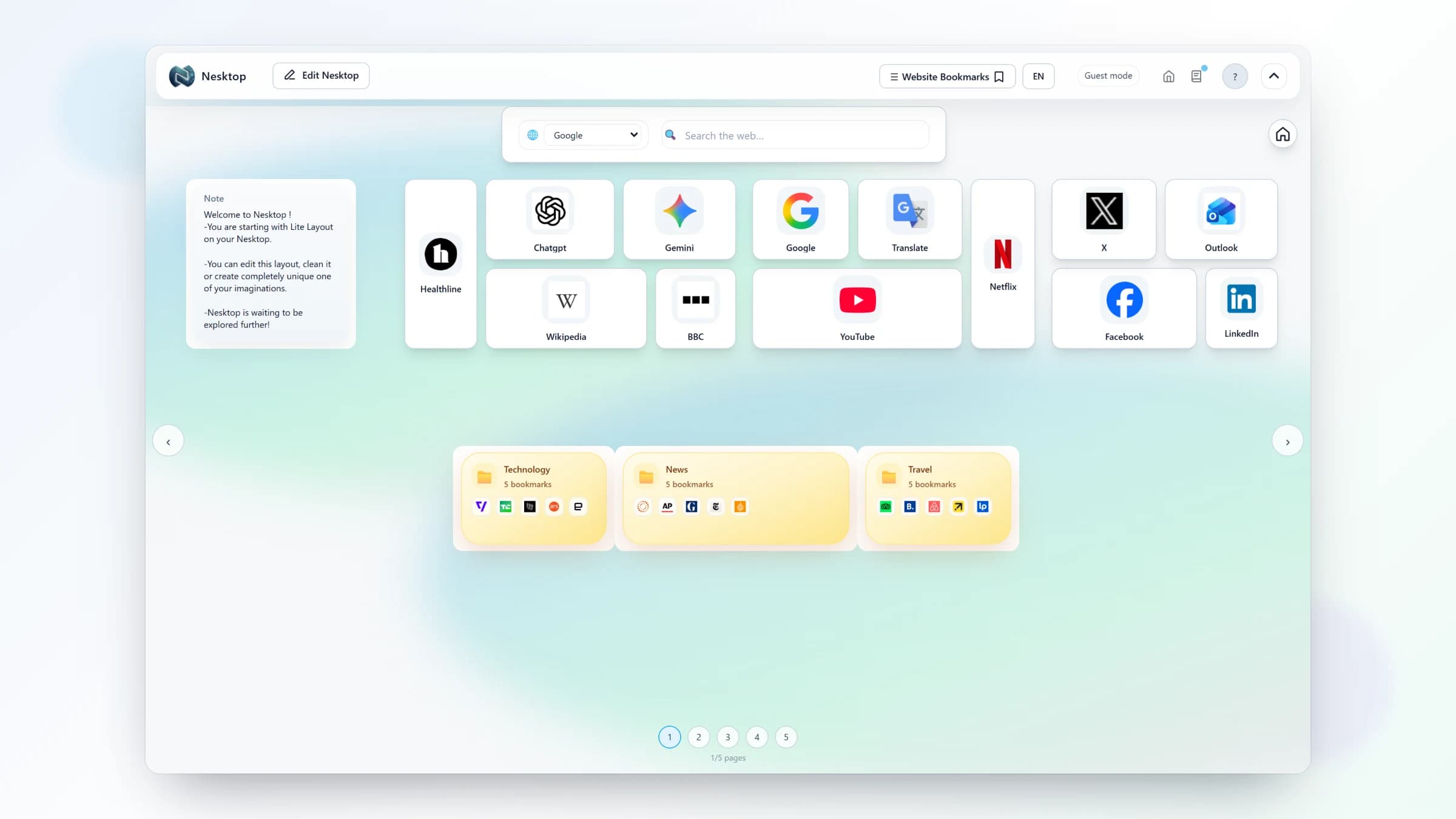
After signing in, you will see the NESKTOP canvas. Open the Layouts menu and pick a preset: Get started - Lite starts with a search widget, a note, bookmark links, and folders, plus sample links you can replace. Get started - Pro starts with the same core tools and a larger bookmark-and-folder arrangement. Study & Research builds subject folders around a current-focus note. Project & Freelance creates a workspace layout for client work. Pick one and the canvas populates instantly.
Step 3: Replace the sample links with your own
Enter edit mode (click the pencil icon or toggle in the top bar). Tap any sample bookmark to edit its title and URL. Paste in your own links — your email, your project dashboard, your calendar, your favorite news site. Drag tiles to rearrange them. Delete what you do not need. In a couple of minutes, the desktop is yours.
Step 4: Set NESKTOP as your browser start page
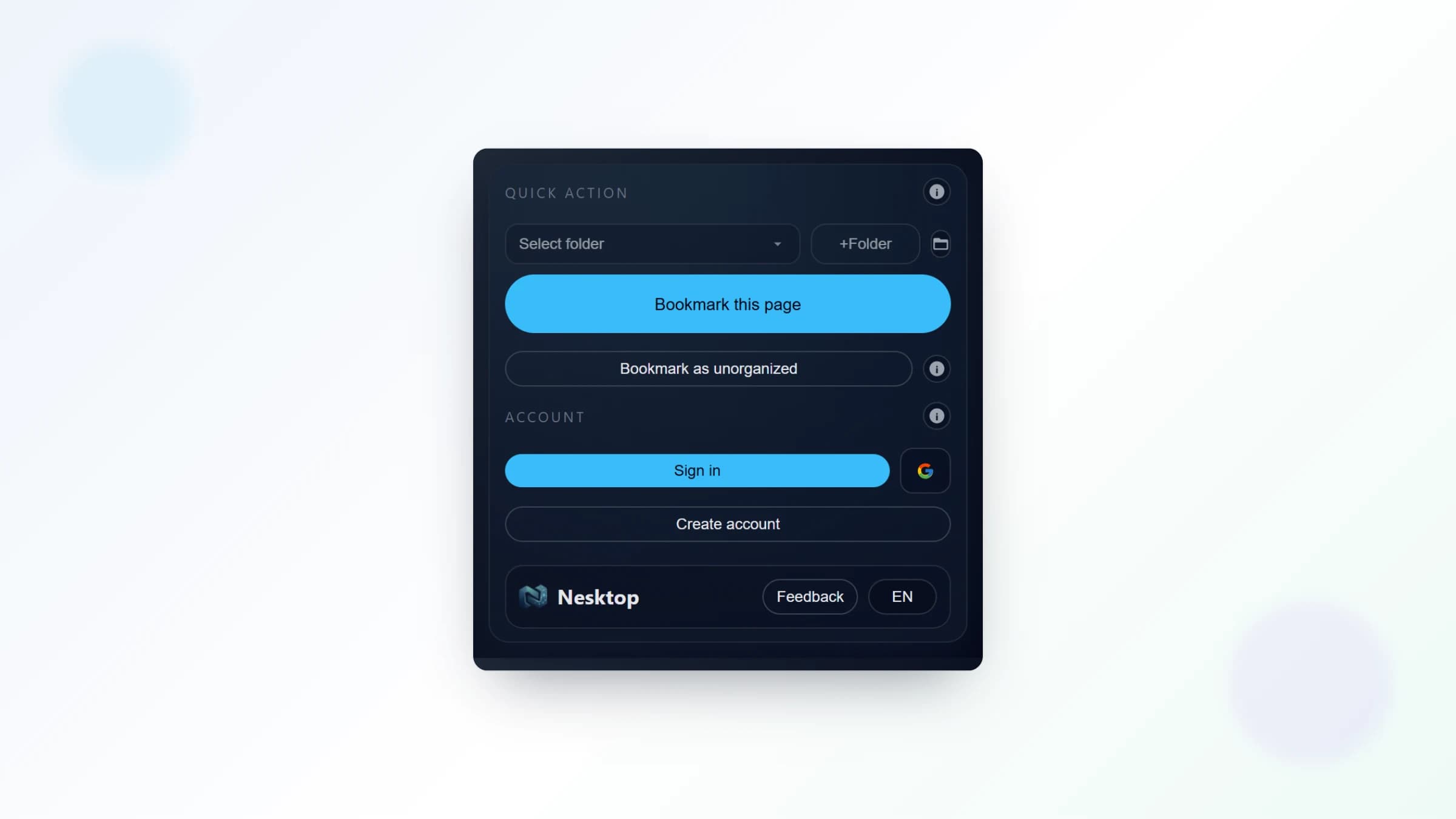
The current documented extension path is the NESKTOP listing in the Chrome Web Store. Install it if you want new-tab support and one-click saving. You can also set https://nesktop.com/nesktop, or the shorter https://nesktop.com/canvas alias, as your browser home or startup page. The web app works in modern browsers; check the relevant browser store for any browser-specific extension availability.
FAQ
Do I need to install anything to use NESKTOP?
No — NESKTOP is a web app that works in modern browsers. The browser extension is optional and adds extra features like new tab override and one-click saving, but the core desktop works without it.
Which preset should I start with?
If you are not sure, start with Get started - Lite — it is the simplest and fastest to customize. You can switch presets or create new pages later at any time.
Related articles
Build your first desktop
Sign up free, pick a preset, and replace the sample links with your own. Five minutes is all it takes.
Continue