
NESKTOP presets: choose the right starting point for your workflow
A complete guide to every built-in NESKTOP preset — what each one includes, who it fits best, and how to customize it for your own routine.
Get started - Lite — a clean, minimal starting point
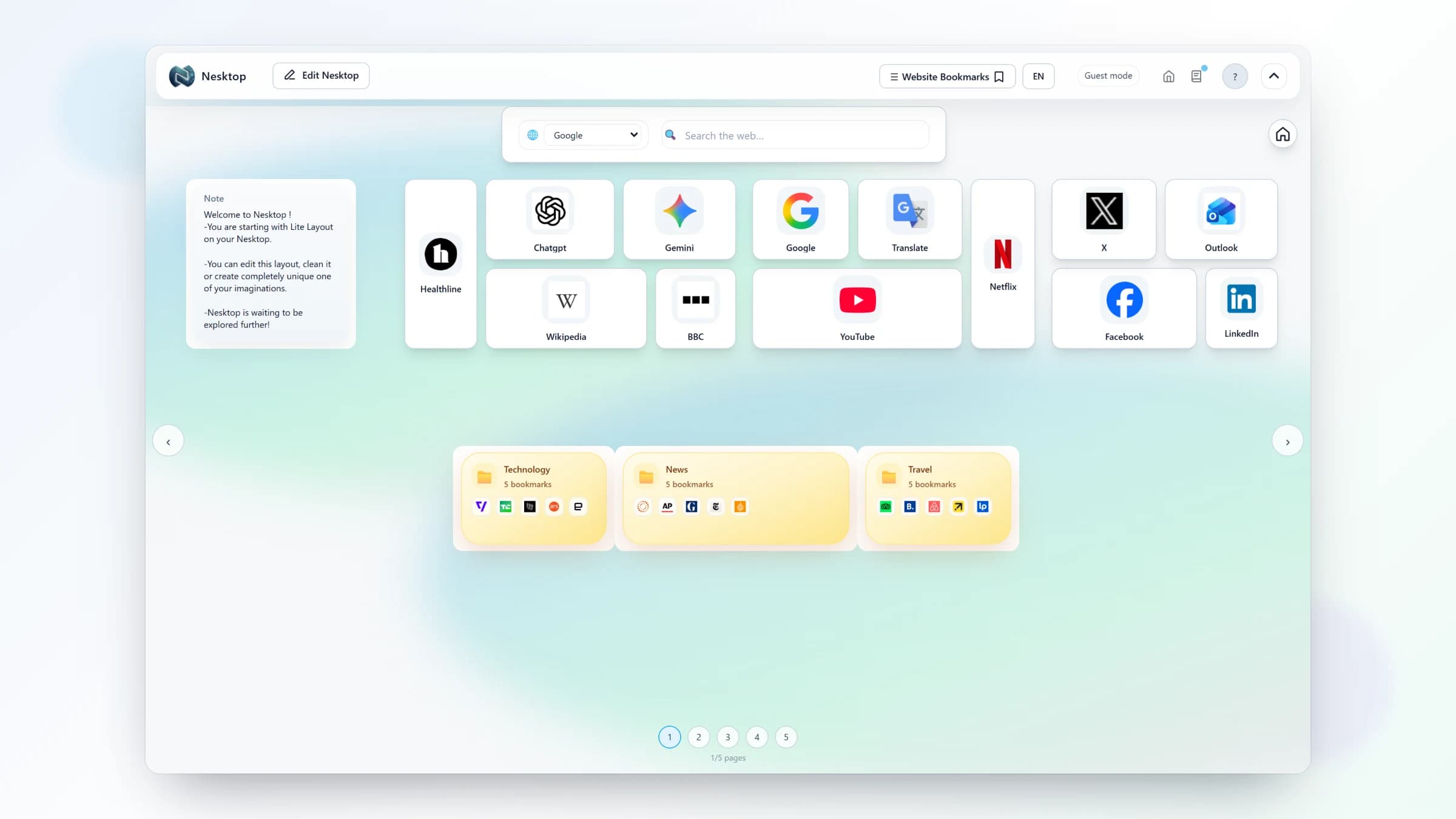
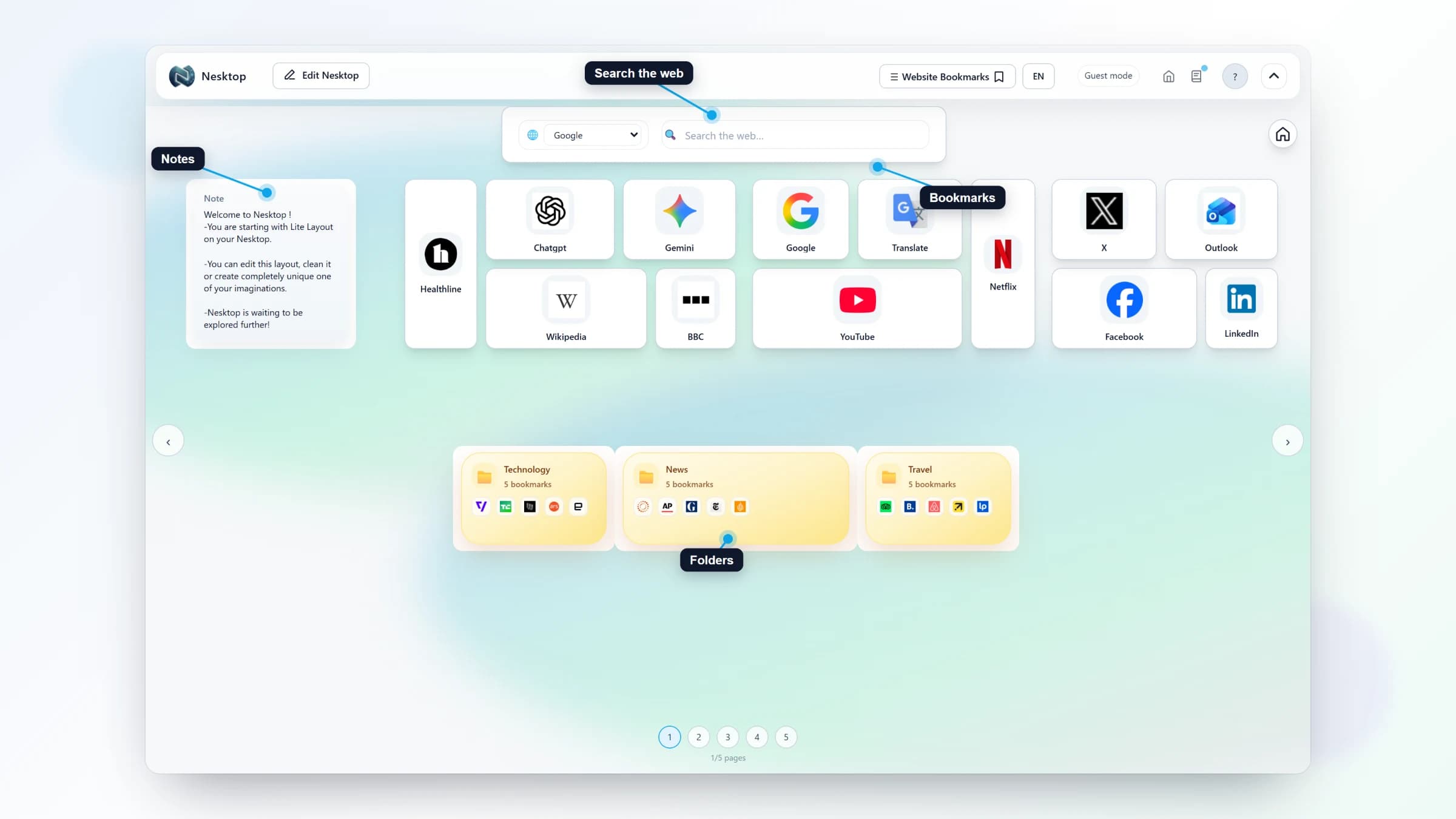
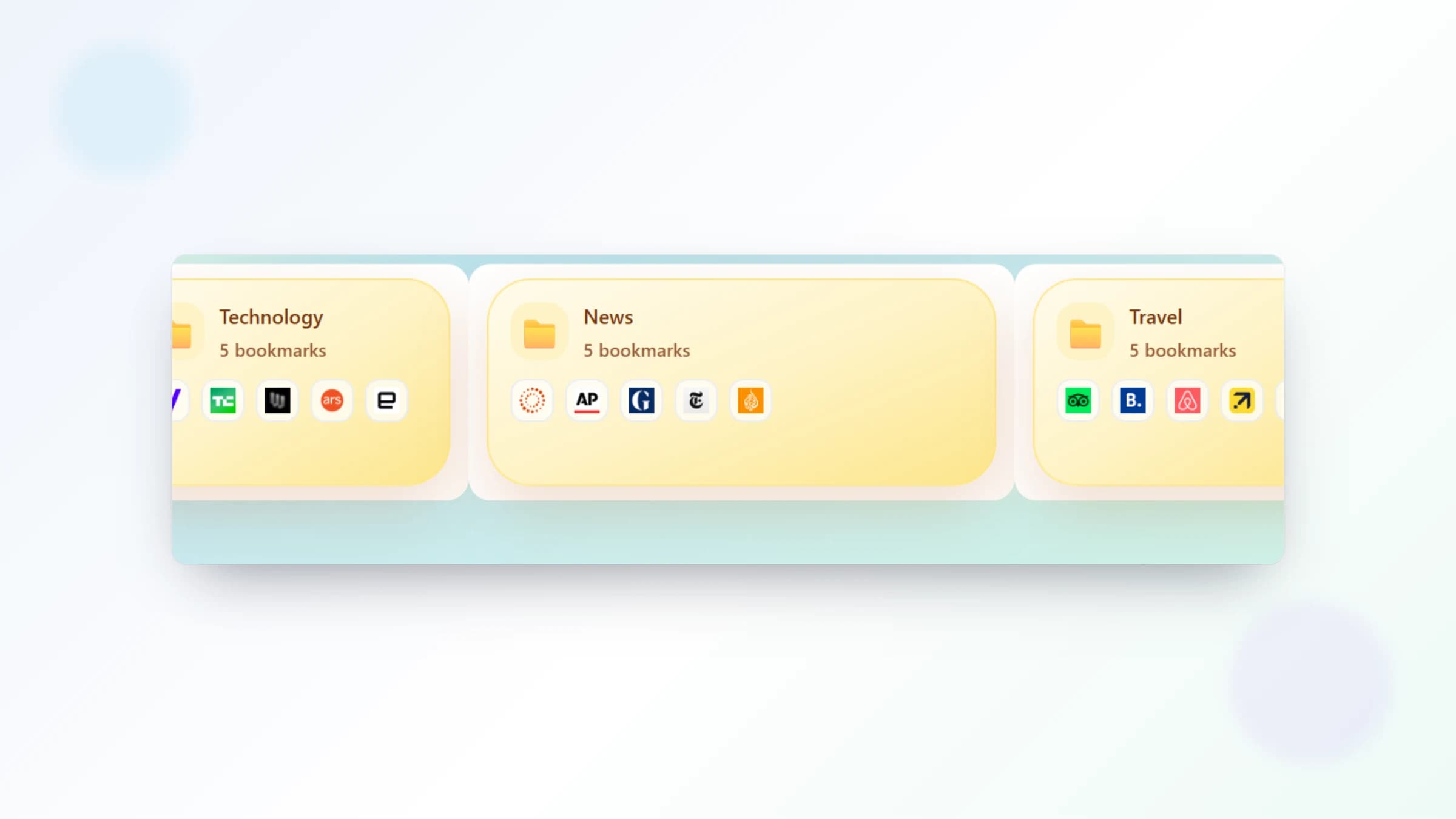
The Get started - Lite preset gives you a focused desktop with a search widget, a note, bookmarks, and folders. Replace the sample links with your own, keep the groups that fit, and remove anything you do not need. Choose Get started - Lite if you want a practical starting point that you can expand gradually.
Pick your preset and start building
Choose Get started - Lite, Get started - Pro, Study & Research, or Project & Freelance — then make it your own.
Try it freeGet started - Pro — a fuller starting point
The Get started - Pro preset starts with the same core tools plus a larger arrangement of bookmarks and folders. It gives you more structure on the canvas from the beginning, while still leaving every widget and link open to customization. Choose Get started - Pro if you want a fuller command center on day one.
Study & Research — subject folders and a current-focus note
This preset creates a desktop organized around subjects, with folders for sources, courses, and writing plus one Current focus note for the question, sources, or next task in view. A search widget is included for quick lookups. Choose Study & Research if you are a student, researcher, teacher, or self-directed learner managing multiple topics.
Project & Freelance — one workspace per client
The Project & Freelance preset builds a professional workspace layout with project folders, client tool sections, notes, and search. It is designed to be cloned — set up one layout for one client, save it, then duplicate and customize for the next. Choose this preset if you are a freelancer, consultant, or agency owner juggling multiple projects.
Blank / Clear layout — start from a completely empty canvas
Sometimes the best starting point is nothing at all. The Blank / Clear layout option gives you an empty desktop page where you can add widgets one by one in any arrangement you like. Choose Blank / Clear layout if you already know exactly what you want to build and prefer to place every element yourself.
Comparison table
| Feature | Nesktop | Other approach |
|---|---|---|
| Best for | Get started - Lite: focused setups. Get started - Pro: fuller starting layouts. Study & Research: learners. Project & Freelance: freelancers. | A blank canvas suits users who prefer to design every detail from scratch. |
| Widgets included | Get started - Lite: search + note + bookmarks + folders. Get started - Pro: search + note + bookmarks + folders with a larger arrangement. Study & Research: search + subject folders + Current focus note. Project & Freelance: search + client sections + Today note. | A blank canvas starts without widgets or example organization. |
| Customization | All presets are fully customizable — add, remove, and rearrange anything | Starting blank offers the same controls but requires more setup. |
FAQ
Can I switch presets after I have already customized my desktop?
Applying a new preset replaces your current layout. If you want to experiment, save your current layout first — then you can always restore it later.
Can I mix elements from different presets?
Yes. Presets are starting points. Once applied, you can add or remove any widget, create new pages, and fully customize the layout. You are never locked into a preset.
Related articles
Pick your preset and start building
Choose Get started - Lite, Get started - Pro, Study & Research, or Project & Freelance — then make it your own.
Continue