
What Is a Visual Bookmark Manager? (And Why You Might Want One)
Explaining what visual bookmark managers are, how they differ from traditional browser bookmarks, and why spatial organization changes how you use the web.
The bookmark bar problem
Browser bookmarks live in a narrow bar or a dropdown menu. You can create folders, but scrolling through hierarchical lists of text links is slow. You forget what is in each folder. You accidentally accumulate hundreds of links you never visit again. The bookmark bar was designed in the 1990s and has not fundamentally changed.
Try a visual desktop
See your links arranged on a canvas instead of hidden in a menu. Free, no signup needed for guest mode.
Try it freeWhat a visual bookmark manager does differently
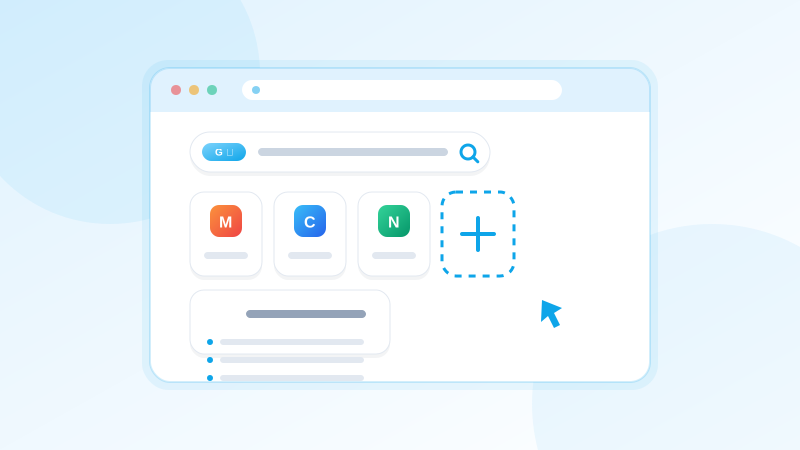
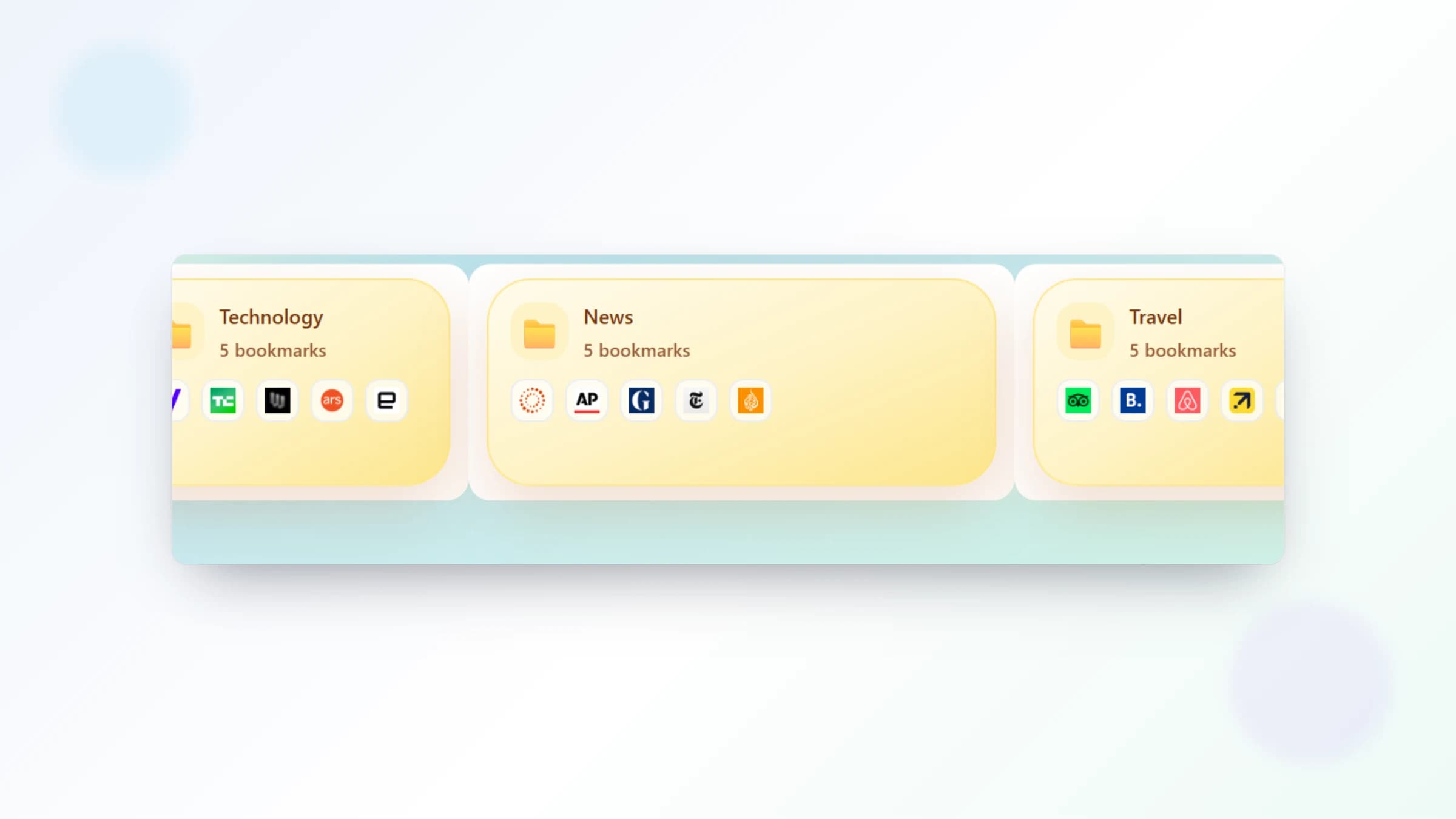
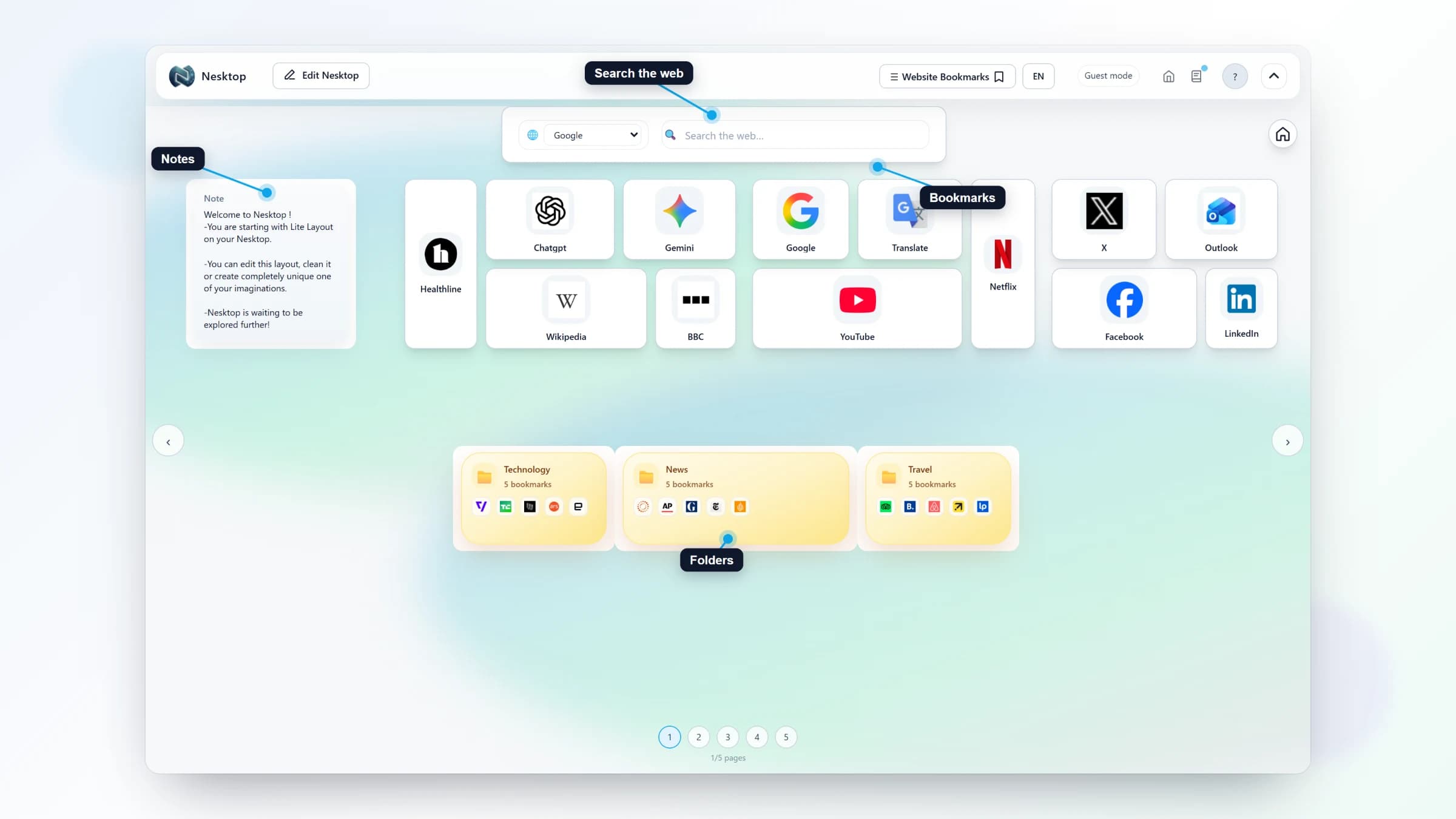
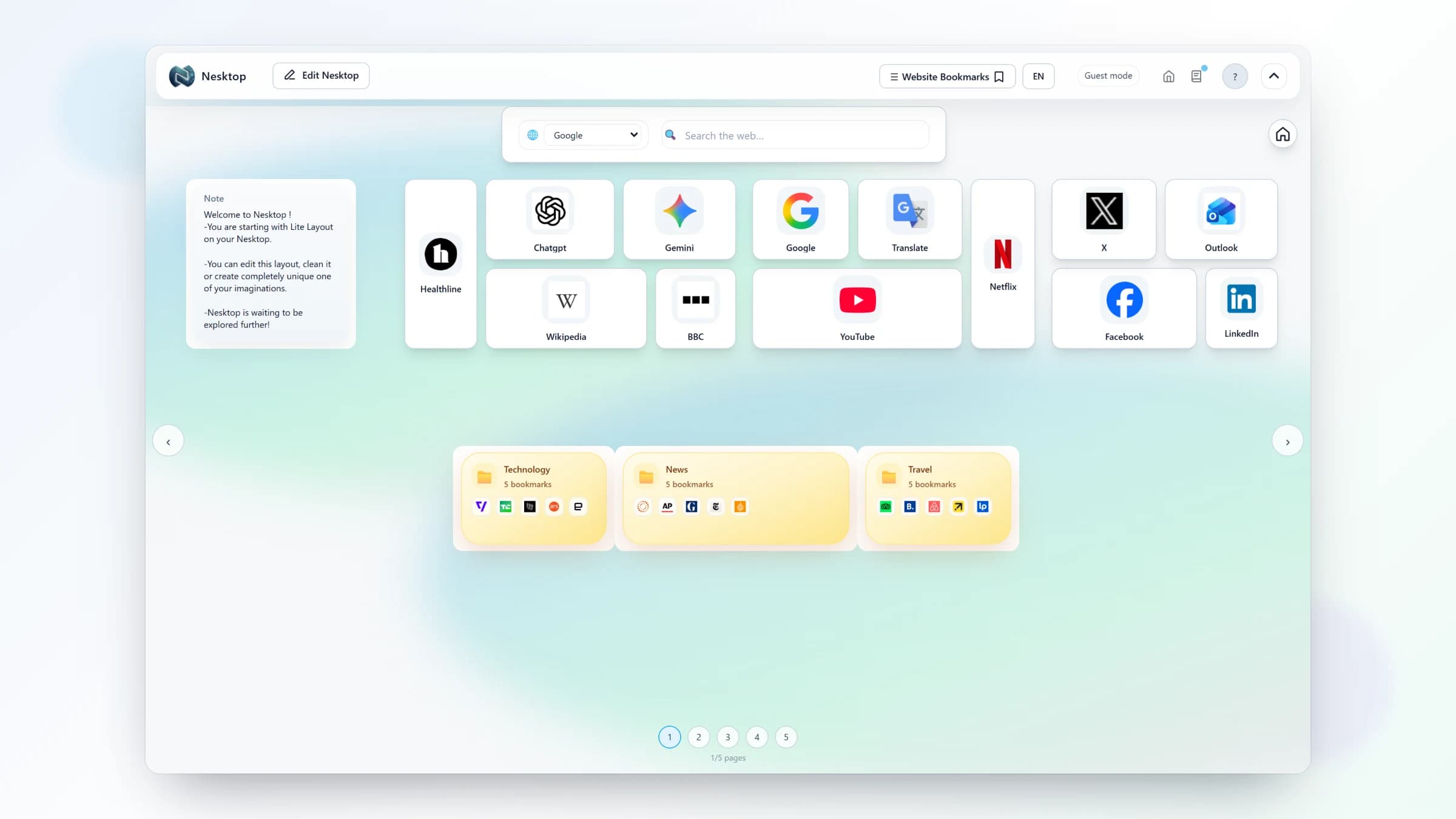
A visual bookmark manager turns your saved links into tiles on a spatial canvas — like a desktop where each icon is a website. Instead of scrolling through a text list, you see your links arranged visually. You remember where things are by position ("top-left, next to the red folder") rather than by name. You can group related links into folders that open like drawers, and you can have multiple pages for different contexts like work, study, and personal browsing.
Why spatial organization works
Human memory is spatial. You remember where you left your keys, not a list of coordinates. Visual bookmark managers exploit this: when your links live in fixed positions on a canvas you see every day, finding them becomes muscle memory. Research in human-computer interaction shows that spatial recall often outperforms hierarchical menu navigation for frequently accessed items.
Who benefits most
Visual bookmark managers are especially useful for people who juggle multiple contexts — developers switching between repos and docs, designers collecting inspiration, researchers tracking sources, freelancers managing client projects, students organizing course materials by semester. Anyone who opens a new browser tab and wishes it showed something more useful than a blank page or a news feed.
Comparison table
| Feature | Nesktop | Other approach |
|---|---|---|
| Organization model | Spatial canvas with tiles, folders, and pages. | Text-based hierarchical folders. |
| Memory retrieval | Position-based ("top-left, red folder"). | Name-based scrolling through lists. |
| Multiple contexts | Separate pages for work, study, personal. | One flat folder structure. |
| Daily visibility | New tab page, seen every time you open a tab. | Hidden behind menus or toolbar clicks. |
FAQ
Do visual bookmark managers replace regular bookmarks?
They complement them. You can keep using browser bookmarks for quick access, while using a visual bookmark manager as your organized home base — the page you see every time you open a new tab.
Are visual bookmark managers free?
Many offer free tiers with core features. NESKTOP, for example, has a free plan with 2 pages per canvas, 100 canvas items per canvas, and 20 folders per account — no ads, no credit card. Paid plans unlock higher limits and features like public profiles.
Do I need to install anything?
Most visual bookmark managers work as browser extensions that replace your new tab page. NESKTOP works this way: install the extension once, and every new tab becomes your visual desktop. You can also use it as a regular website without the extension.
Related articles
Try a visual desktop
See your links arranged on a canvas instead of hidden in a menu. Free, no signup needed for guest mode.
Continue